Contenido
iPhone calendar allows you to schedule your time and events, take notes and organize your activities. Sometimes we need to check and review the old calendar and events. If you accidentally delete your iPhone calendar or just lose it for some unknown reason, don't worry. Whether it's from an accidental delete, an iOS update, or a sync problem, here are some methods that can help. Try following the 5 methods to recover the deleted iPhone Calendar.
If your iPhone calendar events disappeared, knowing why can help with recovery. Common causes are:
Accidentally deleting the events
Syncing problems.
Signing out of your Apple ID.
Calendars are turned off in settings.
iOS update issue.
Restaurando iPhone backup that erases current data.
Calendar groups get hidden.
Different cases need to apply different methods, check them now.
To restore deleted calendar events from iCloud, head over to iCloud.com and log in. If you've lost bunches of events or even whole calendars, this built-in recovery feature might help. It's pretty simple too:
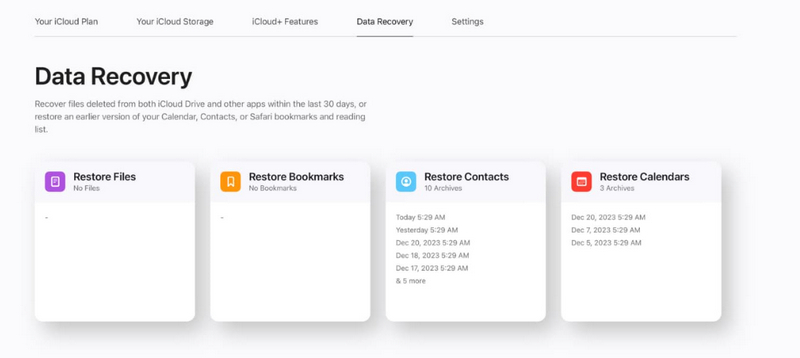
After you restore, iCloud will clear your current calendar with the one from the archive and save a backup of your existing calendar.
PROS
CONTRAS
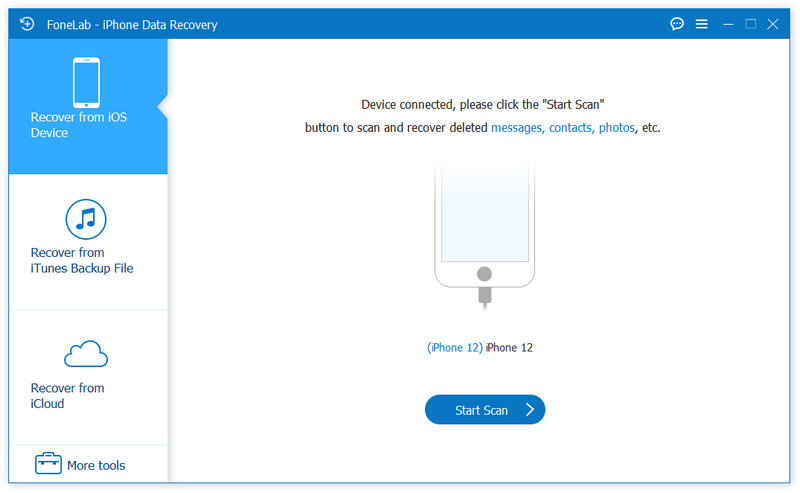
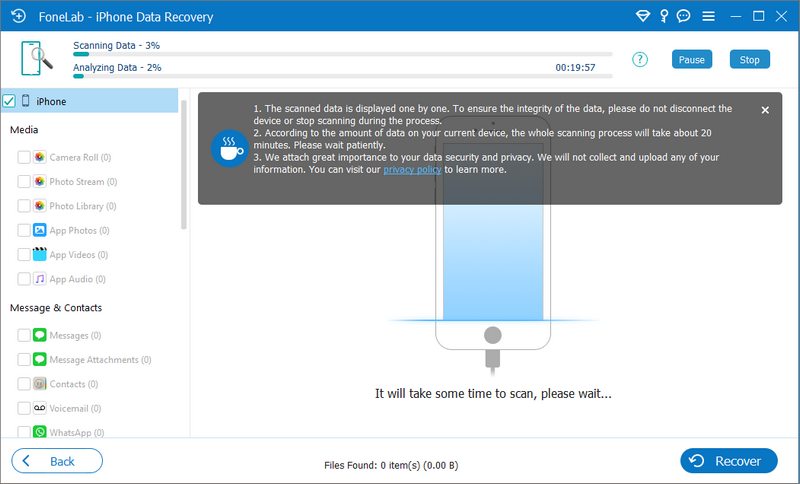
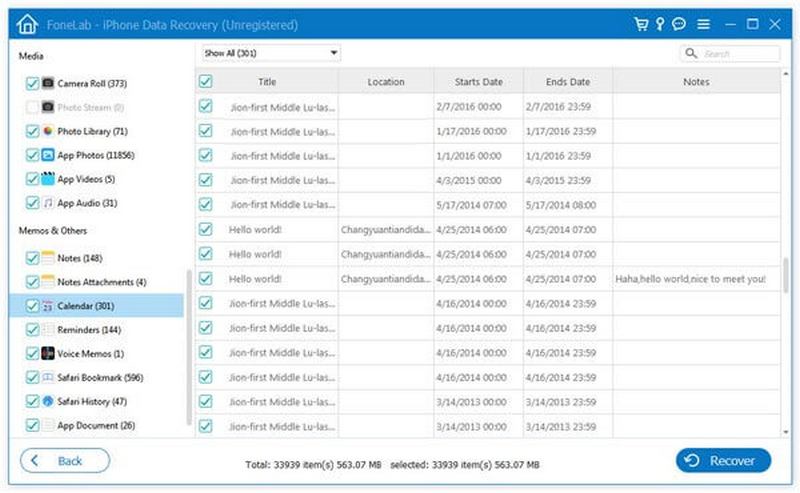
If you delete your calendar on iPhone without any backup file, you can use Aiseesoft FoneLab iPhone Recuperación de datos. This tool is great because it scans your iPhone directly and recovers your calendar without backup. This calendar recovery app can help you retrieve deleted calendars from iPhone, iPad or iPod directly, and save the calendars to PC or Mac for backup.
How to use FoneLab:
 100% Seguro. Sin anuncios.
PROS
CONTRAS
Many people use Google Calendar, Outlook, Exchange, or Yahoo calendars. If these accounts stop syncing, events can suddenly disappear from your Calendar app. Then, re-syncing your account usually fixes this problem.
Para iOS 17 y posteriores:
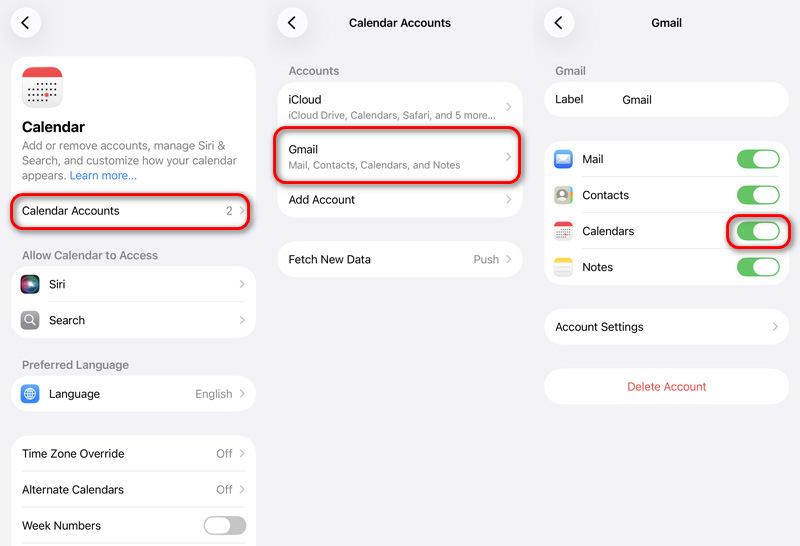
If your events are still on the server, they should show up again after syncing.
PROS
CONTRAS
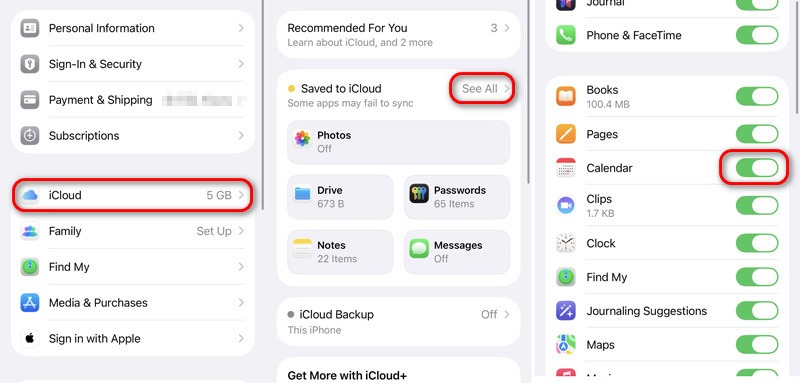
iCloud Calendar data will automatically and regularly sync the new data across all your iOS devices. And once in a while, it may occur due to an unstable internet or system crash. Just refreshing iCloud Calendar can solve problems with missing calendars after software updates or account sync issues.
PROS
CONTRAS
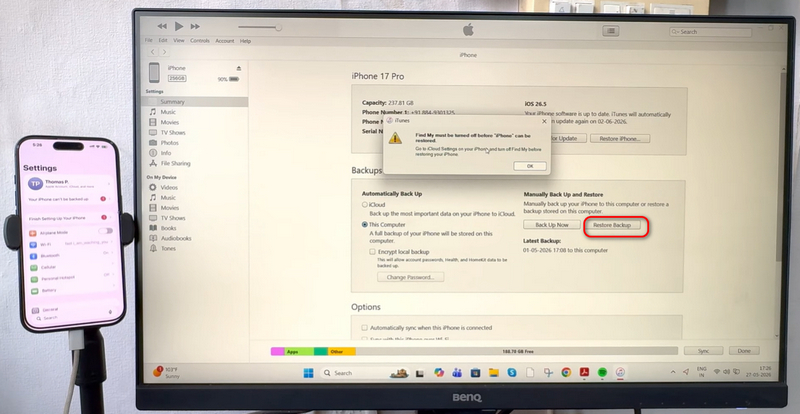
If you regularly back up your iPhone using Finder (on Mac) or iTunes (on Windows or older Macs). You can directly restore everything, including the missing calendar, from the early backups. However, restoring a backup replaces all current device data, and you need to make sure the calendar needed is backed up in the selected backup.
PROS
CONTRAS
Can I recover permanently deleted calendar events on iPhone?
Yes, sometimes you can. When the deleted events were linked to iCloud and recently wiped, try using iCloud's calendar archive to restore them. Backup recovery apps could help too, but only if the delete happened recently.
Why are my calendar events missing after an iOS update?
At times, updating your phone's system might muck up your account sync settings. Make sure your calendars keep syncing by double-checking those settings. Tweak things usually involve fixing or re-syncing account settings or simply refreshing your iCloud Calendar.
Can I recover a deleted shared calendar?
Yes, just ask the owner to share it with you again. If the calendar got deleted recently, you can also look into iCloud's recovery options and other methods mentioned above.
Will restoring an iPhone backup delete current data?
Restoring via Finder or iTunes will delete everything on your device and replace it with the data from the backup you choose. Using iCloud recovery, resyncing calendar and Aiseesoft iPhone Data Recovery will not affect the current data.
Conclusión
When your iPhone loses calendar events, don't worry; it's probably just a sync issue, not permanent disappearance. First, take a deep breath and check your iCloud syncing, calendar visibility, and connected accounts.
If you accidentally delete a calendar, try iCloud's archive recovery—it often works swiftly. Without a backup, though, you could try Aiseesoft FoneLab to find the missing info. Lots of people also find that resyncing accounts and refreshing iCloud settings can be really helpful.
To get those meetings and reminders back, act fast. The sooner you start recovering data, the better your chances of success.
 Cómo recuperar archivos de datos eliminados con el software de recuperación de iPad
Aprenda cómo recuperar archivos de datos perdidos o eliminados de iPad/iPhone/iPod aquí. Puede recuperar fotos, contactos, SMS y notas del iPad con esta herramienta de recuperación de iPad.
 Los 3 mejores métodos para sincronizar el calendario de Outlook con el iPhone [Actualizado en 2026]
¿Quieres sincronizar el calendario de Outlook con el iPhone? Esta publicación le mostrará tres formas de sincronizar el calendario de Outlook con iPhone, iTunes e iCloud para verlo fácilmente en iPhone.
 Cómo acceder al calendario de iCloud desde una PC con Windows
¿Cómo acceder a iCloud desde la PC para ver y administrar el calendario de iCloud? Este artículo le brinda tres métodos simples para administrar el calendario de iCloud en la PC.
Recuperar datos eliminados del iPhone
Recuperar fotos borradas de iPhoneRecuperar SMS eliminados de iPhoneRecuperar registros de llamadas eliminadas de iPhoneRecuperar contactos eliminados de iPhoneRecuperar recordatorio eliminado de iPhoneRecuperar notas borradas del iPhoneRecuperar calendario eliminado de iPhoneRecuperar notas de voz eliminadas de iPhoneRecuperar música eliminada de iPhone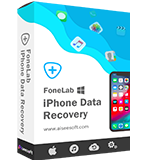
El mejor software de recuperación de datos de iPhone de todos los tiempos, que permite a los usuarios recuperar de forma segura los datos perdidos de iPhone/iPad/iPod desde un dispositivo iOS, copia de seguridad de iTunes/iCloud.
100% Seguro. Sin anuncios.
100% Seguro. Sin anuncios.

*Campo requerido
*Por favor ingrese un correo electrónico válido