Aiseesoft Screen Recorder
 100% Seguro. Sin anuncios.
100% Seguro. Sin anuncios.
¿Alguna vez has intentado explicarle un fallo técnico a un amigo, o quizás has querido capturar un momento épico de un videojuego, y te has dado cuenta de que no sabías qué botón presionar? Me ha pasado. Ya seas un estudiante intentando grabar una clase de Zoom, un YouTuber en ciernes o simplemente alguien que quiere guardar un vídeo divertido de una llamada de FaceTime, encontrar la mejor grabador de pantalla para Mac Puede parecer un laberinto total.
Apple nos ofrece algunas herramientas básicas (¡un saludo a QuickTime!), pero a veces necesitas más. Quizás necesites grabar el audio interno, dibujar en la pantalla mientras hablas o incluso grabar la cámara web y la pantalla simultáneamente. Después de pasar semanas probando docenas de aplicaciones y haciendo que mi MacBook Air se bloquee más veces de las que me gustaría admitir, hemos reducido la lista a las 9 mejores. Sigue leyendo para ver la lista.
| Precio (vida útil) | Ideal Para | Plataformas | Soporte macOS | Anotación en vivo | Calidad máxima | Formatos de exportación | Marca de agua gratis | |
| Tiempo rapido | Free | Clips basicos | macOS | Todos (Nativo) | No | 4K | MOV | No |
| Aiseesoft Screen Recorder | ~ $ 49.96 | Grabación estable en HQ | Mac / Win | 10.12+ | Sí | 4K/HDR | MP4, MOV, GIF | Sí |
| Tiro limpio X | ~ $ 29 | Usuarios avanzados / UI | macOS | 10.14+ | Sí | 4K | MP4, GIF | No |
| OBS Studio | Free | Transmisión profesional | Mac/Windows/Linux | 11.0+ | A través del complemento | 4K | MP4, MKV | No |
| ScreenFlow | ~ $ 169 | Edición de vídeo profesional | macOS | 13.0+ | Sí | 5K+ | MP4, ProRes | Sí |
| Camtasia | ~ $ 299 | Capacitación del trabajo | Mac / Win | 14.0+ | Sí | 4K | MP4, MOV | Sí |
| Snagit | ~ $ 62 | Comentarios en el lugar de trabajo | Mac / Win | 14.0+ | Sí | 1080p | MP4, GIF | Sí |
| Screen Recorder de telar | Suscripción | Equipos asincrónicos | Mac/Web | 12.3+ | Sí | 4K | Nube / MP4 | No (Límite de tiempo) |
| Movavi Screen Recorder | ~ $ 59.95 | Facilidad para principiantes | Mac / Win | 10.15+ | Sí | 4K | MP4, AVI | Sí |
Recomendaciones finales
Aiseesoft Screen Recorder Ha sido mi "red de seguridad" durante años porque es uno de los grabadores más estables para contenido extenso. No importa si estoy grabando un seminario web de dos horas o un clip rápido; administra los recursos del sistema eficientemente sin que los ventiladores de mi Mac se descontrolen. La interfaz es sencilla y separa la grabación de video, audio y juegos en modos distintos, para que no tengas que rebuscar entre los menús. Una de sus características destacadas es la capacidad de grabar video de alta calidad con audio interno, algo especialmente esencial para capturar trabajos de diseño de alta fidelidad. Es totalmente compatible con las últimas actualizaciones de macOS y funciona de forma nativa con chips Apple Silicon.
Ventajas
Desventajas
Como Aiseesoft es mi elección "confiable", aquí explica exactamente cómo lo configuré para obtener la mejor calidad sin perder tiempo.
100% Seguro. Sin anuncios.
100% Seguro. Sin anuncios.
Al ejecutar el software, se iniciará en el modo de grabación de video de forma predeterminada. Para grabar en otros modos, como un podcast o un clip de Spotify, seleccione Grabadora de audio.
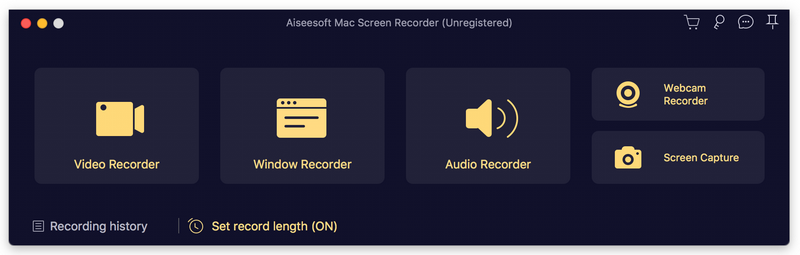
Aquí, puedes seleccionar "Pantalla completa" para los tutoriales, pero si estás intentando ocultar un escritorio desordenado, haz clic en PersonalizadoPuede arrastrar los bordes para que se ajusten exactamente a una ventana específica.
Aquí es donde la mayoría de la gente suele cometer errores. Asegúrate Sistema de sonido está activado si desea grabar lo que se está reproduciendo en su Mac (como un video de YouTube o una llamada de Zoom). Activar Micrófono Activado si quieres que se escuche tu voz. Recomiendo hacer una prueba de sonido de 5 segundos antes de empezar.
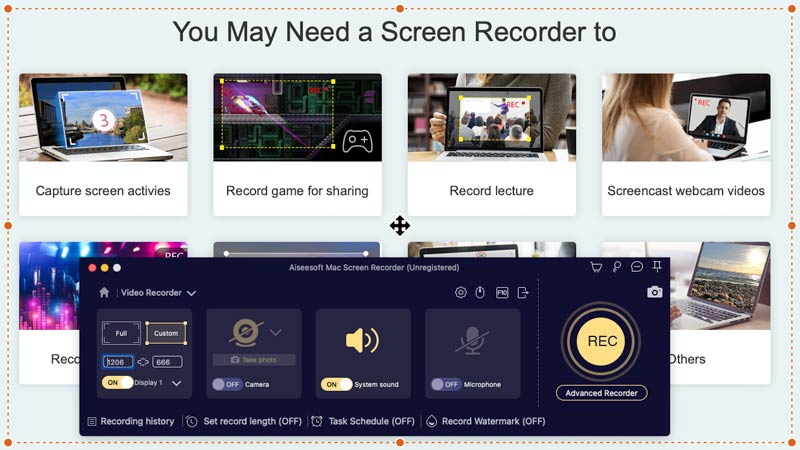
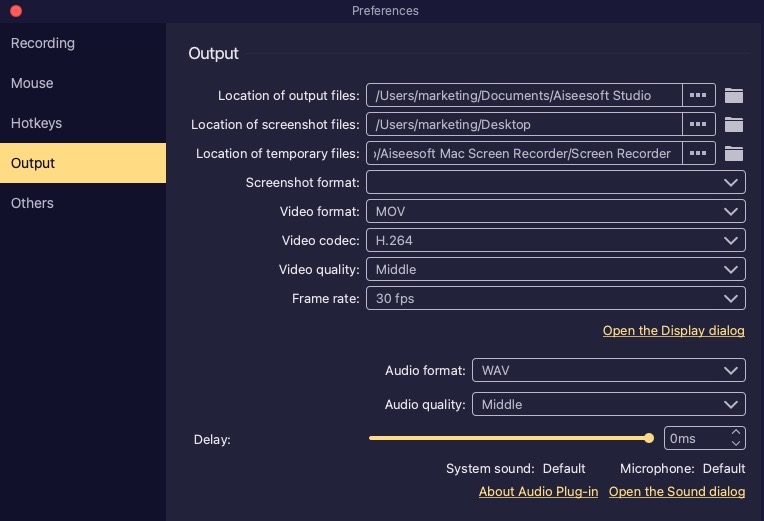
Haga clic en el ícono de engranaje (Configuración).
En la pestaña "Salida", siempre configuro el formato de video en MP4 y la calidad a Alto or LosslessSi usas una Mac con pantalla Retina, esto garantiza que el texto se mantenga nítido.
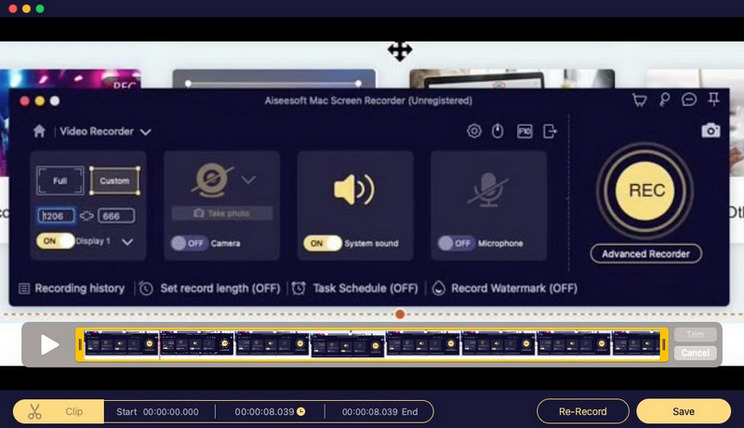
Haga clic en el gran rojo REC Botón. Al grabar, aparece una pequeña barra de herramientas. Me encanta usar la herramienta Pluma para dibujar círculos o flechas alrededor de cosas mientras hablo, y me ahorra mucho tiempo en la posedición.
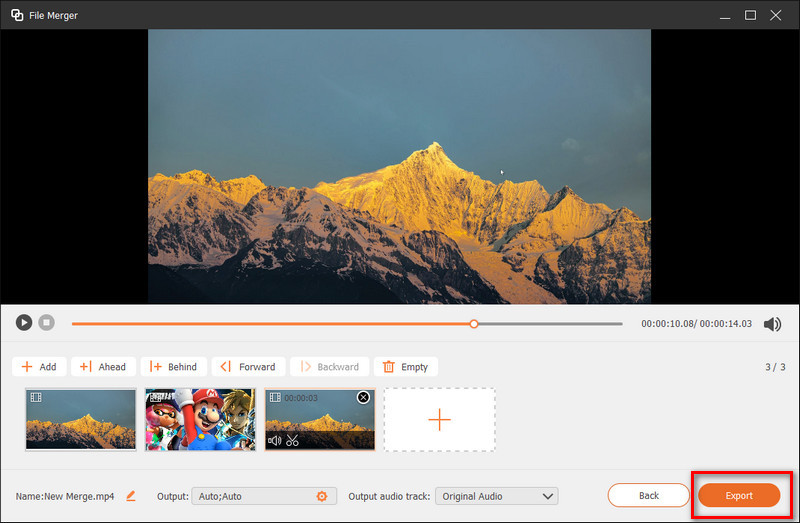
Al pulsar el botón de parada, aparecerá una ventana de vista previa. Usa los marcadores de "Clip" en la parte inferior para recortar cualquier silencio incómodo al principio o al final, y luego pulsa Exportar.
He usado Aiseesoft para grabar cursos en línea, y lo que más aprecio es la función de "excluir ventana". Es una gran ayuda cuando necesito ver mis notas en la misma pantalla que estoy grabando, y las notas permanecen invisibles para el público. No es la aplicación más llamativa de esta lista, pero probablemente sea la más fiable para grabaciones de alto impacto.
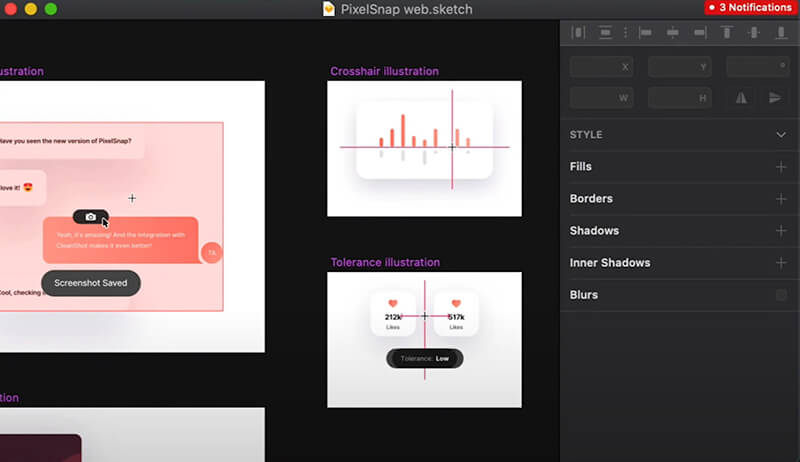
CleanShot X es posiblemente el software más "similar a Mac" de esta lista de los mejores programas de grabación de pantalla para Mac, y se siente como una potente mejora de la herramienta de captura de pantalla nativa. Se integra en la barra de menú y permite grabar videos, GIF e incluso capturas de sitios web extensos con un solo clic. La interfaz es increíblemente pulida e incluye un servicio en la nube integrado que permite subir un clip y recibir al instante un enlace para compartir. Incluso tiene una función para ocultar automáticamente los iconos desordenados del escritorio antes de empezar a grabar. Si te importa la estética y la velocidad, este es el tuyo.
Ventajas
Desventajas
CleanShot X es mi herramienta predilecta para crear clips rápidos y directos. Siendo sincero, la uso al menos cinco veces al día solo para mostrarles a mis desarrolladores un pequeño error o compartir un ajuste de diseño. Es tan rápida que ha cambiado mi forma de trabajar: ahora grabo un vídeo de 10 segundos en lugar de escribir un párrafo.
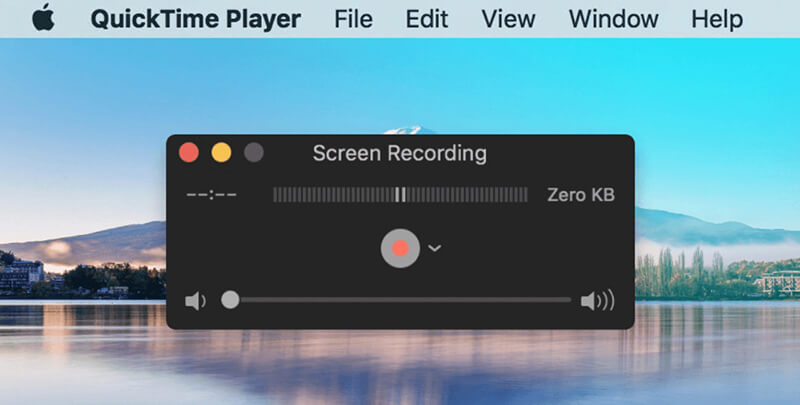
Si tienes prisa y no quieres gastar ni un centavo ni descargar un solo archivo, Tiempo rapido Ya está en tu carpeta de Aplicaciones. La grabadora de video de captura de pantalla para Mac es increíblemente ligera y hace exactamente lo que promete: graba tu pantalla. Puedes elegir grabar la pantalla completa o solo una parte, e incluso te permite grabar la pantalla de tu iPhone o iPad conectado. Sin embargo, su mayor defecto es que no puede grabar el audio interno del sistema sin tener que pasar por muchos trámites, como instalar "BlackHole" o "Soundflower". Es una excelente herramienta para empezar, pero la mayoría de los usuarios la superan rápidamente.
Ventajas
Desventajas
QuickTime es mi solución cuando me olvidé de descargar una grabadora. Es fiable para tareas sencillas, pero me frustra no poder ni siquiera dibujar una flecha en la pantalla mientras hablo. Normalmente tengo que usar una aplicación de terceros para comprimir los archivos que genera porque son demasiado grandes para el correo electrónico.
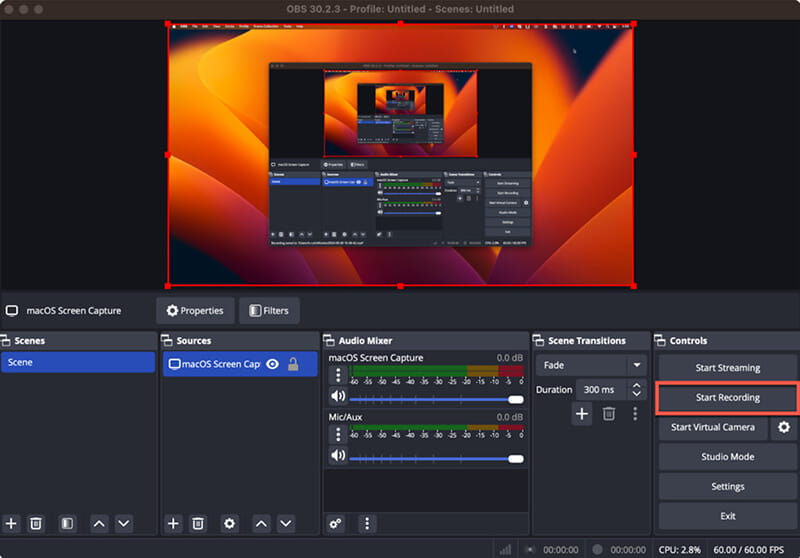
OBS (Open Broadcaster Software) es un software gratuito para grabar pantalla y audio en Mac. Es de nivel profesional para grabar y transmitir a WhatsApp, FaceTime, Messenger y más. Al ser de código abierto, ofrece un nivel de personalización inigualable, permitiéndote crear escenas complejas con múltiples cámaras web, imágenes y ventanas. Es la opción ideal para gamers y streamers que necesitan superponer su cara en una parte específica de la pantalla. La desventaja es que se asemeja a una cabina de mando, con botones y controles deslizantes por todas partes, y la curva de aprendizaje es bastante pronunciada para principiantes.
Ventajas
Desventajas
Me encanta OBS cuando hago algo complejo, como una entrevista multicámara. Pero, siendo sincero, para una simple pantalla compartida, es como usar un mazo para romper una nuez. Definitivamente, he pasado más tiempo solucionando problemas con la configuración de OBS que grabando.
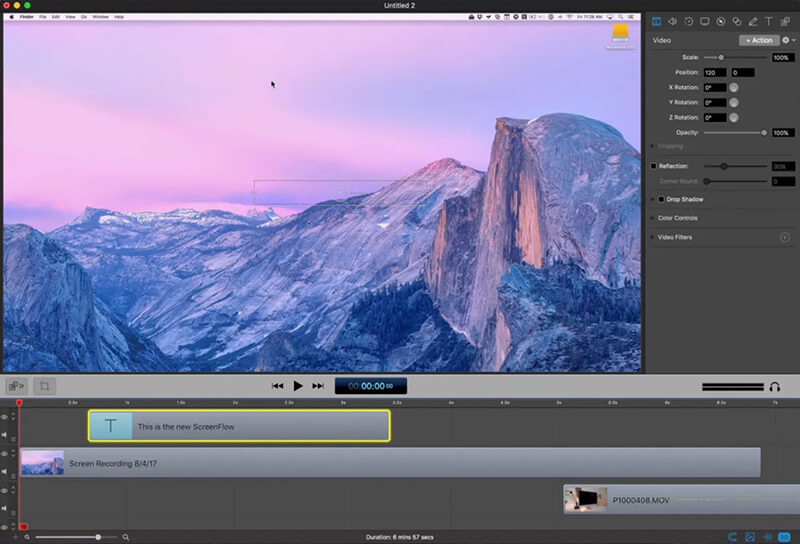
Si quieres crear tutoriales compatibles con YouTube sin tener que cambiar entre una grabadora y un editor como Final Cut Pro, ScreenFlow es la solución. Está diseñado específicamente para macOS, lo que significa que se adapta a pantallas Retina de alta resolución mejor que casi cualquier otro. Después de grabar, accedes a un potente editor multipista donde puedes añadir "llamadas" que amplían el contenido con el ratón o difuminan información sensible con facilidad. Es caro, pero es el estándar para los educadores profesionales en línea por algo.
Ventajas
Desventajas
Siempre que creo un curso de pago, ScreenFlow es mi único software de grabación de pantalla con audio para Mac. La posibilidad de retroceder en la postproducción y suavizar los movimientos del ratón me da una imagen mucho más profesional de la que realmente tengo. Es una inversión considerable, pero si ganas dinero con tus vídeos, se amortiza.
Sin embargo, este software solo está disponible para usuarios de Mac. Si quieres probarlo en Windows, consulta esta publicación para conocer alternativas a ScreenFlow para Windows.
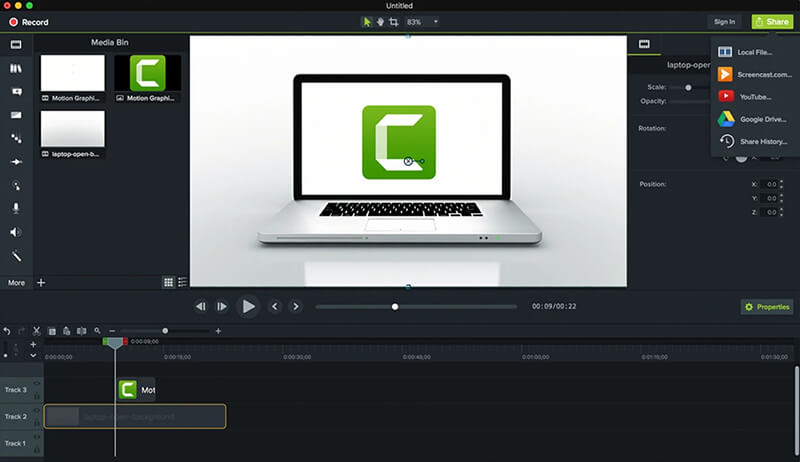
Camtasia Es el rival directo de ScreenFlow, pero tiene una gran ventaja: funciona tanto en Windows como en Mac. Esto lo convierte en la opción predilecta para equipos corporativos donde algunos empleados usan PC y otros MacBooks. Incluye una gran cantidad de recursos como plantillas de introducción, pistas de música e íconos que ayudan a crear un video impecable rápidamente. Es muy fácil de usar, pero su precio está claramente orientado a empresas, no a aficionados ocasionales.
Ventajas
Desventajas
La función "Rev" de Camtasia, que sugiere automáticamente diseños para la cámara web y la pantalla, me ahorra mucho tiempo. Es perfecta para crear presentaciones corporativas impecables. Sin embargo, he notado que la versión para Mac a veces recibe actualizaciones unas semanas después que la versión para Windows.
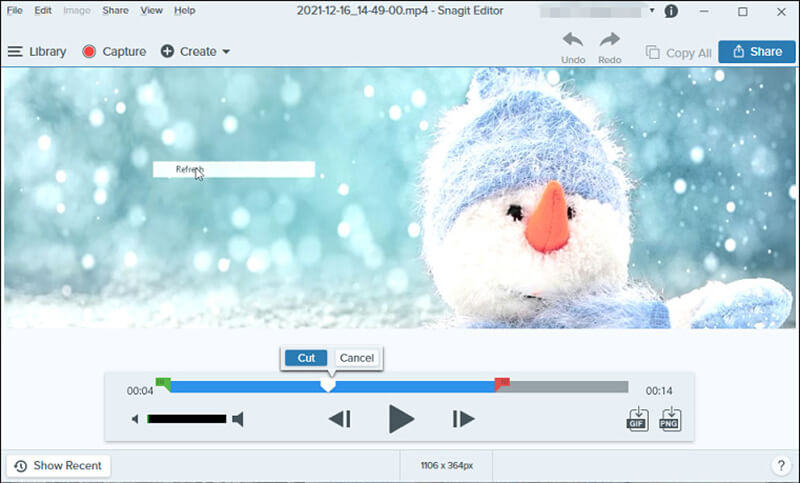
Snagit no pretende ser un creador de vídeos; busca reemplazar tus correos electrónicos largos y aburridos. Es una herramienta híbrida que se centra principalmente en capturas de pantalla y vídeos explicativos cortos. Puedes grabar un clip rápido y luego usar el editor para añadir "Pasos" (1, 2, 3) o flechas para convertir el vídeo en una guía documentada. Es la forma más rápida de dar retroalimentación a un compañero o crear una sección de preguntas frecuentes sencilla para un cliente.
Ventajas
Desventajas
Snagit es mi herramienta de comunicación. Si un compañero me pregunta cómo usar una función específica de nuestro software, grabo un vídeo de 30 segundos en Snagit. Es mucho más rápido que entrar en una llamada de Zoom y pueden volver a verlo cuando quieran.
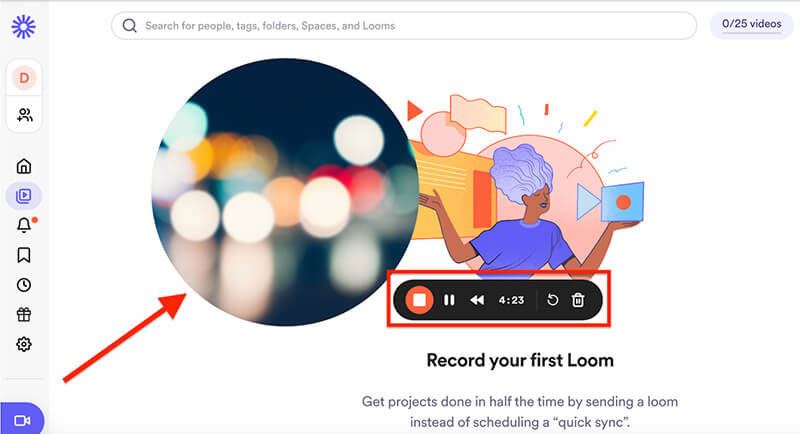
Screen Recorder de telar Se ha convertido prácticamente en un verbo en el mundo tecnológico ("Te lo paso en Loom"). Es una grabadora en la nube que sube tu video mientras sigues hablando. En cuanto detienes la conversación, el enlace está listo para pegarse en un chat. Cuenta con la famosa superposición de "cámara web circular" que mantiene el enfoque en tu rostro mientras presentas. Es perfecta para equipos remotos que desean reducir el número de reuniones en vivo.
Ventajas
Desventajas
Loom es una gran ayuda para trabajar en diferentes zonas horarias. Grabo mi actualización al final del día y mi equipo en Europa la ve al despertarse. La transcripción de IA es sorprendentemente precisa y agradezco poder ver quién ha visto mi video.
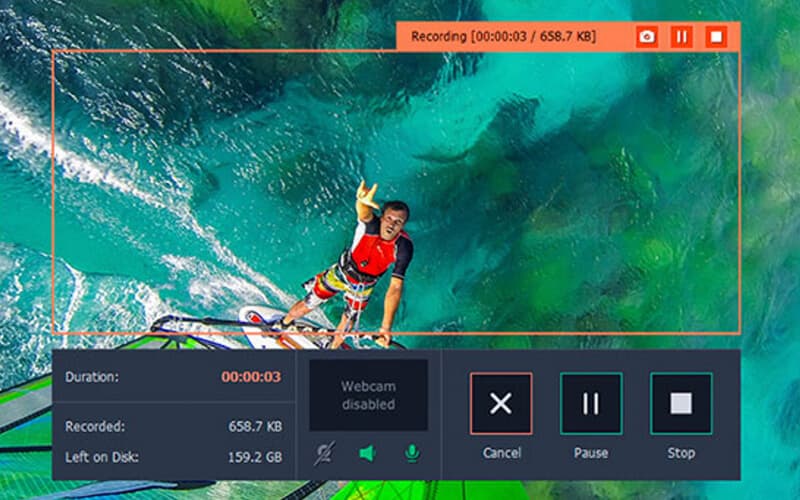
Movavi es el software que recomiendo a mis amigos que no son expertos en tecnología. Tiene una interfaz limpia y moderna con una barra lateral compacta que no distrae. Gestiona las funciones básicas: pantalla, audio y cámara web de maravilla, e incluso incluye una función de visualización "Keystroke", ideal para demostraciones de software. Es una opción intermedia ideal para quienes buscan algo más que QuickTime pero no necesitan la complejidad de ScreenFlow.
Ventajas
Desventajas
He usado Movavi para grabar algunos talleres en línea y nunca me ha fallado. Es un software práctico. No tiene un millón de funciones, pero las que tiene funcionan exactamente como prometen. Además, Movavi Screen Recorder tiene algunos problemas que pueden provocar un cierre inesperado. Es de esas aplicaciones que compras una vez y no tienes que volver a pensar en ellas.
P: ¿Puedo grabar mi pantalla en una Mac de forma gratuita?
R: ¡Sí! Puedes usar QuickTime Player (integrado) u OBS Studio. Si solo necesitas clips cortos, Loom también es una excelente opción gratuita de software de grabación de pantalla para Mac.
P: ¿Cómo grabo audio interno en una Mac?
R: Esta es la parte complicada. Mientras que algunas aplicaciones de pago, como Aiseesoft, lo hacen automáticamente, las gratuitas suelen requerir la instalación de un "cable de audio virtual" como BlackHole o Soundflower.
P: ¿Cuál es el mejor grabador de pantalla de terceros para WhatsApp Mac?
R: Para grabar llamadas de WhatsApp, recomiendo Aiseesoft o Movavi. Pueden capturar el audio y el video de la aplicación de escritorio sin el retraso que suelen experimentar las grabadoras de navegador.
Conclusión
Encontrar el El mejor grabador de pantalla para Mac Depende mucho de tus objetivos. Si buscas una herramienta versátil que capture audio interno y te permita dibujar en la pantalla, Aiseesoft Screen Recorder es mi favorita por su versatilidad. Para disfrutar de la mejor experiencia, elige CleanShot X. Si eres un streamer en ciernes, OBS Studio es tu mejor opción. Elijas lo que elijas, recuerda que la mejor herramienta es la que te permite transmitir tus ideas con claridad y sin complicaciones.
 Las 10 mejores aplicaciones de grabadora de voz disponibles para computadoras con Mac
Aquí destacamos las 10 mejores aplicaciones de grabadora de voz para Mac que son fáciles de usar y le permiten capturar fácilmente su voz con una MacBook u otras máquinas Mac.
 [Gratis] Los 10 mejores grabadores de pantalla gratuitos para Mac, Windows y en línea
¿Cuál es el mejor grabador de pantalla gratuito? ¿Tiene la necesidad de capturar la pantalla en su PC o Mac con Windows 10/8/7 pero no sabe qué software gratuito de grabación de pantalla debe usar? Esta publicación hace una lista de las 10 mejores grabadoras de pantalla gratuitas con audio para que elijas.
 Una revisión detallada de los 8 mejores grabadores de pantalla sin demoras
¿Hacer siempre grabaciones de pantalla con retraso? No te preocupes. Aquí probamos 8 grabadores de pantalla sin demoras y hacemos esta revisión con datos. Puedes elegir uno que te guste.
Aiseesoft Screen Recorder es el mejor software de grabación de pantalla para capturar cualquier actividad como videos en línea, llamadas de cámara web, juegos en Windows/Mac.
100% Seguro. Sin anuncios.
100% Seguro. Sin anuncios.

*Campo requerido
*Por favor ingrese un correo electrónico válido