If you’ve ever tried to move a massive folder of concert videos or school project photos from your Samsung or Pixel over to your Mac, you know the struggle is real. For years, the go-to solution was a tiny, simple utility called Transferencia de archivos Android. But lately, it feels like that app has gone ghost on us.
Is it still supported? Why does it keep crashing? And most importantly, what are we supposed to use now that Google seems to be moving on? Tired of the could not connect to device error popping up every five seconds. In this guide, we will answer all your questions, so you can decide whether to use this app for syncing Android phone data.
Let’s start with the basics. If you’re coming from a Windows background, you probably didn't even know Android File Transfer was a specific thing. On Windows, simply plug your phone in, and it appears as a thumb drive. But Macs? Macs are picky. They don't natively speak the language that Android phones use to share files (which is called MTP, or Media Transfer Protocol).
To bridge that gap, Google created the official Android File Transfer application. It was a bare-bones, no-frills app designed specifically for macOS. You’d install it, plug in your phone via USB, and a window would pop up showing your phone's internal folders. In this way, you can easily transfer data from one Android phone to another.
For a long time, AFT Android Fle Transfer was the only official way to handle things. However, Google has been pivoting. They’ve recently rebranded their Nearby Share to Quick Share (collaborating with Samsung). While Quick Share is amazing for sending files between Android phones and even to Windows PCs, the Mac version of this ecosystem is still... well, complicated.
When you search for an Android File Transfer download, you’ll often see a tool called MacDroid. Here is a little pro tip from my research: many third-party companies use the name' Android File Transfer' in their ads or product descriptions because they know that’s what we’re searching for. While MacDroid is a solid tool, it’s not the official Google one. It’s a paid alternative that tries to capture the traffic from people who are frustrated with the official Android File Transfer app.
This is the million-dollar question. If you ask a Google dev, they might say it’s in maintenance mode. If you ask a high schooler to try to finish a video edit, they’ll tell you it’s basically a zombie.
Technically, the Android File Transfer program still exists, but it hasn't undergone a major UI update in years. It feels like an app from 2012. On newer versions of macOS, such as Sonoma or Sequoia, many users report that Android File Transfer has stopped working entirely. You’ll encounter errors stating that the Mac can’t access the device, or the app will simply bounce in the dock and then disappear.
Google seems to be putting all its energy into wireless sharing and cloud backups (Google Drive, Google Photos). But let’s be real: sometimes you don’t have 20GB of cloud space or a fast Wi-Fi connection. You need a cable. Because Google is no longer prioritizing the wired Android File Transfer for Mac experience, the app has become buggy, unreliable, and frankly, a bit of a headache when trying to use it to copia de seguridad de Android a la PC o Mac.
Here is where it gets spicy. If you go looking for the Android File Transfer download link today, you might find yourself going in circles.
In the past, there was a very specific landing page (android.com/filetransfer). Recently, Google has started redirecting many of these support pages toward their new Quick Share marketing materials. Although you can still occasionally find the direct download link hidden in a help article, Google has largely removed the prominent Download Now buttons from its main site.
Why? Because they want you to use the modern, wireless ecosystem. However, for us Mac users, Quick Share is not yet officially available as a standalone Mac app. This leaves us in a peculiar limbo, where the Android File Transfer application is difficult to locate, and the new features do not work on our MacBooks.
If you do manage to find a site claiming to have a cracked version of Android File Transfer for Mac, stay away! The original app was always free. Anyone offering a cracked version of a free app is likely trying to hand you a nice, shiny piece of malware. Always stick to official sources or reputable alternatives.
After pulling my hair out because Android File Transfer wasn't working, the theme of my week was finding a professional alternative. That’s when I found Aiseesoft MobieSync.
Honestly, it was like moving from a bicycle to a Tesla. If you’re looking for a reliable PC-to-Android File Transfer software (that also works beautifully on Mac), this is the one.
The original Android File Transfer app only allows you to view files, not edit them. That’s it. MobieSync is a full-blown media manager. It doesn't just show folders; it organizes your life.
Key features of MobieSync:
Media converter: It can automatically convert HEIC photos or specific video formats so they actually play on your computer.
Copias de seguridad: You can back up your entire contact list or SMS history, which is something the basic Android File Transfer app could never do.
If you’re tired of receiving the 'Android File Transfer not working' notification, here is how to use MobieSync to get your files moving in under five minutes.
Download and install MobieSync on your computer.
 100% Seguro. Sin anuncios.
Launch the program and connect your Android phone using a USB cable.
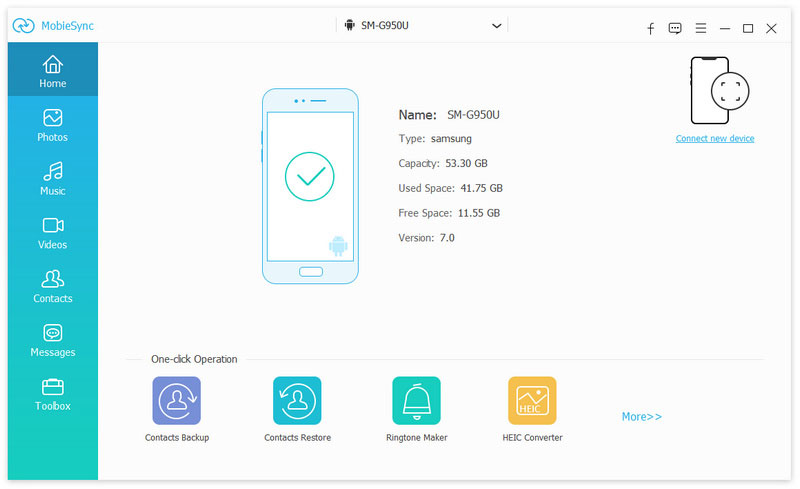
For any Android File Transfer software to function, your phone requires permission to communicate with the computer.
Vaya a Configuración> Acerca del teléfono y toque Número de compilación seven times (I know, it feels like a cheat code). Then, in Developer Options, toggle on USB Debugging.
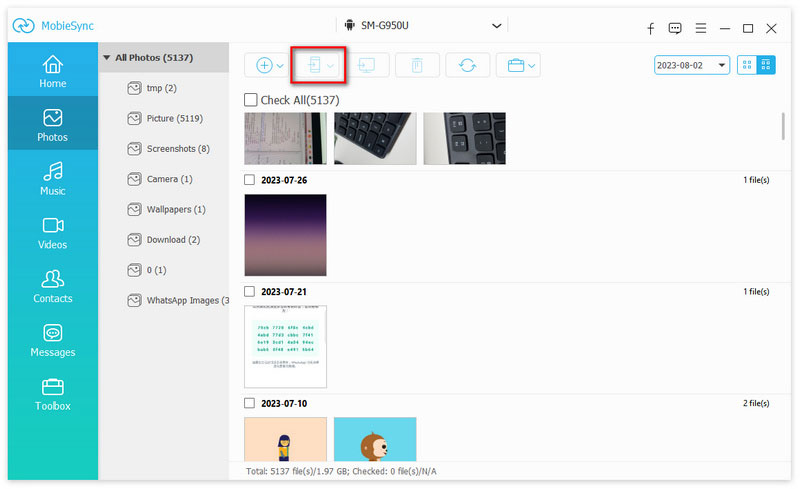
On the left-hand sidebar of MobieSync, you’ll see categories: Photos, Music, Videos, Contacts, and Messages. Click on Galería de fotos (or whatever you need).
Highlight the files you want, click the Export to Device/PC icon at the top, and select your destination folder.
Done! The progress bar actually moves (unlike the frozen ones on the old Google app), and your files are safe and sound on your hard drive.
Since I’ve spent way too much time troubleshooting Android file transfer, here are some human-to-human tips to save you some stress:
Not all USB-C cables are created equal. Some cables that come with cheap headphones are power only, meaning they can charge your phone but can't carry data. If your Android File Transfer program doesn't recognize your phone, try using the original cable that came with the box.
When you plug your phone in, it usually defaults to Solo carga mode. Swipe down your notification shade, tap the USB Preferences notification, and manually select File Transfer / Android Auto. This is the #1 reason why Android File Transfer for Mac fails.
If you have Photos, Image Capture, or Spotify open on your Mac, they may attempt to establish a connection to your phone, which can cause the Android File Transfer application to error out. Close all of them before starting your transfer.
Sometimes, if your phone locks during a transfer, the security settings will cut the data flow. Set your screen timeout to 5 minutes while you’re moving big files.
Q: Why is Android File Transfer so bad on Mac?
A: Because Apple and Google are rivals! Apple wants you to use iPhones and iCloud; Google wants you to use Android and Google Drive. Neither side is super motivated to make a USB cable connection between the two systems perfectly seamless.
Q: Does Android File Transfer work on Windows 11?
A: You actually don't need a specific Android File Transfer Windows app! Windows uses File Explorer to view Android phones natively. However, if you want a more organized experience (such as viewing your messages or managing contacts), that’s where a tool like MobieSync comes in handy.
Q: Is there a wireless way to do this?
A: Yes! You can use Google Drive or WeTransfer for small files. For larger folders, you can try Quick Share for Windows, but it’s still a bit hit-or-miss for Mac users.
Q: My Android File Transfer stopped working after a macOS update. What do I do?
A: This is super common. Apple updates its security protocols, and the old Google app can't keep up. Your best bet is to switch to a modern, frequently updated alternative, such as MobieSync or open-source tools like OpenMTP.
Conclusión
At the end of the day, the official Transferencia de archivos Android app is like that old pair of sneakers you’ve had since middle school, and they were great for a while, but now they’re full of holes and falling apart. While it’s sad to see the official Android File Transfer download become so unreliable, it’s also an opportunity to upgrade to something better.
If you’re moving just one or two photos, a quick cloud upload is sufficient. However, if you’re serious about managing your media, avoiding the headaches that don't work, and having a pleasant experience, we highly recommend exploring Aiseesoft MobieSync. It resolved every issue we had with Android File Transfer lag and significantly improved my workflow for school projects.
 Las 3 mejores soluciones para transferir SMS de Android a iPhone fácilmente
¿No sabe cómo transferir sus mensajes de texto de Android a iPhone después de comprar un nuevo teléfono móvil? Lea este artículo para encontrar todas las soluciones posibles.
 Cómo transferir datos de Android a iPhone sin problemas
¿Te preocupa no saber cómo transferir datos de Android a iPhone? No te preocupes. En esta publicación, te ofrecemos varias formas de pasar de Android a iPhone sin esfuerzo.
 Cómo hacer una copia de seguridad de WhatsApp en Android - Guía detallada 2025
Hacer una copia de seguridad de WhatsApp en Android es importante para evitar la pérdida de datos después de transferir WhatsApp a otros dispositivos. Esta publicación le mostrará cómo hacerlo.
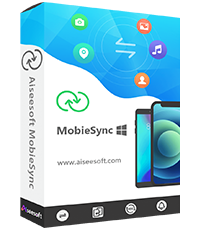
El administrador de datos profesional de iPhone/Android y la transferencia para transferir varios archivos entre el teléfono iOS/Android y la computadora y entre dos teléfonos móviles en 1 clic.
100% Seguro. Sin anuncios.

*Campo requerido
*Por favor ingrese un correo electrónico válido