
Tasa de éxito del 99.8 %: Recuperación de datos de Windows y Mac
 100% Seguro. Sin anuncios.
100% Seguro. Sin anuncios.
Contenido
Wondering if Adobe Photoshop has an auto-save feature? Whether you're using Photoshop 2025, CC 2017, or older versions like CS6, losing hours of work due to a sudden crash is a nightmare. This post provides a deep dive into how Photoshop Autosave works, where to find the AutoRecover folder, and how to use professional PSD recovery software to rescue your deleted or corrupted files.

Unlike Microsoft Word’s autosave, Photoshop doesn’t automatically save every change you make. However, it does have an autosave feature that can help recover your work in case of unexpected problems.
If your computer suddenly loses power, Photoshop crashes, or something else goes wrong, the autosave feature kicks in. It creates a backup of the file you were working on, which you can retrieve when you reopen Photoshop. If you're using a more recent version of Photoshop (like Photoshop 2024 or later), the backup file will even open automatically when you restart the program.
In this article, we’ll explain how you can use Photoshop’s built-in autosave and recovery features to get your lost files back. Plus, we’ll share some additional recovery methods if the built-in options don’t work. Keep reading to learn how to maximize your chances of recovering unsaved or lost PSD files.
| Método de recuperación | La mejor opción para | Desventajas | Tasa de éxito |
| Way 1: Open Recent | Files that were recently closed without saving. | Only works for files that were recently opened; limited to files listed. | High (if the file was recently opened). |
| Way 2: Photoshop Auto Save | Files lost due to unexpected crashes. | Won’t recover unsaved files if Auto Save wasn’t activated or if files were overwritten. | High (if Auto Save was enabled). |
| Way 3: Temporary Files | Files lost when Auto Save or Open Recent doesn't work. | Temporary files may be incomplete or corrupted. Not all files are recoverable. | Moderate (depends on system settings). |
| Way 4: Windows File History | Files overwritten or lost after a crash. | Requires File History to be enabled and regular backups. Limited to files that were backed up. | High (if File History was enabled). |
| Way 5: Mac Time Machine | Mac users who regularly use Time Machine. | Requires Time Machine to be enabled. Only works for backed-up files. | High (if Time Machine is enabled). |
| Way 6: Aiseesoft Data Recovery | Last resort for deleted or corrupted files. | May not recover 100% of lost data, especially if files were overwritten. May require a paid version for full recovery. | Very High (depending on the file state and system setup). |
If you’ve accidentally closed a Photoshop file without saving it or if Photoshop crashes unexpectedly, you might be able to quickly recover your work using the Open Recent feature. This built-in option is one of the simplest ways to retrieve unsaved files in Photoshop, especially if you've recently worked on the file.
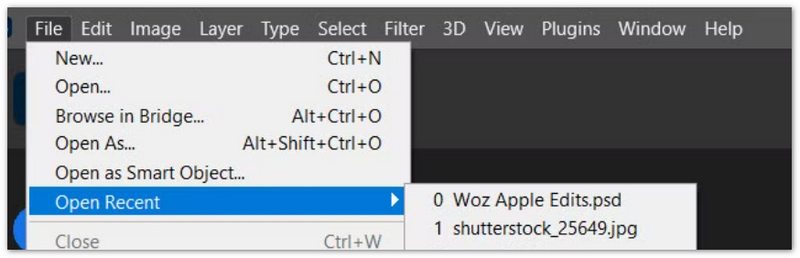
The Open Recent feature in Photoshop keeps a list of recently opened files, even if they weren't saved before closing the program. If the file you were working on recently is still listed, you can quickly reopen it and continue your work without losing progress. This method is particularly useful for users who may have forgotten to save their file before an unexpected shutdown or crash.
Photoshop’s Auto Save feature is a lifesaver when the app crashes unexpectedly, allowing you to recover your work without starting over. The Auto Save function automatically creates backup copies of your files at regular intervals, ensuring you don't lose hours of progress.
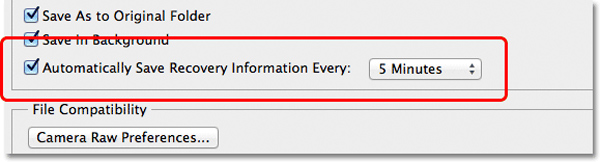
This feature is designed to automatically back up your work at set intervals, such as every 5, 10, 15, 30, or 60 minutes. If Photoshop crashes or shuts down unexpectedly, you can easily recover your last backup file and continue where you left off.
Though Photoshop Auto Save has been available for years, it became more widely recognized as a useful feature starting with Photoshop CC 2017.
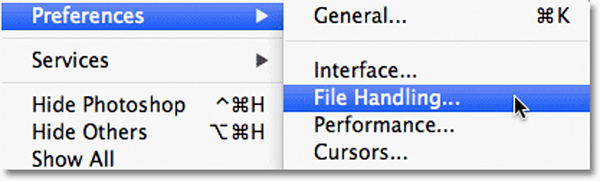
The Auto Save feature should be enabled by default, but to make sure it’s working properly, follow these steps:
Para Windows:
Para usuarios de Mac:
Auto save files are stored in the Photoshop AutoRecover folder. You can find them in the following directory:
Para Windows:
C:\Users\[Your Username]\AppData\Roaming\Adobe Photoshop\[Version]\AutoRecover
Para usuarios de Mac:
Users/[Your Username]/Library/Application Support/Adobe/Adobe Photoshop/[Version]/AutoRecover
If Photoshop crashes before you save your work, you can recover unsaved PSD files through the Auto Save feature. Here’s how:
• In File Explorer (Windows): go to “View” > “Options” > Change folder and search options, then select the “View” tab and choose “Show hidden files, folders, and drives”.
• On Mac: you may need to press Command + Shift + . to show hidden files.
Once visible, you can select and save the PSD files to a safe location on your computer.
If you’re unable to find your AutoSave file or if Photoshop didn’t save one, consider using a reliable Photoshop PSD Recovery tool from the button below to restore deleted or lost files.
100% Seguro. Sin anuncios.
100% Seguro. Sin anuncios.
If neither Open Recent nor Auto Save helps you recover your lost Photoshop files, you can try checking your system's temporary files (Temp files). Photoshop often stores temporary versions of your files in the system’s temp folder during editing. These temporary files might contain unsaved progress that could help you recover your work.
The location of temporary files depends on your operating system. Here’s how to find them:
En Windows:
C:\Users\[Your Username]\AppData\Local\Temp
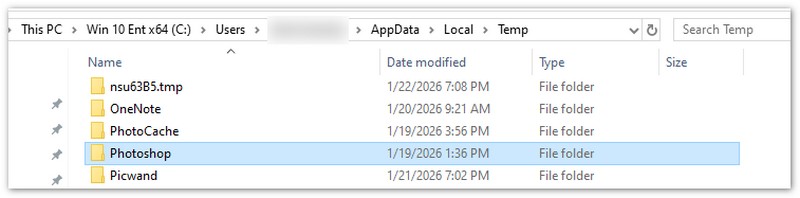
En Mac:
/private/var/folders/
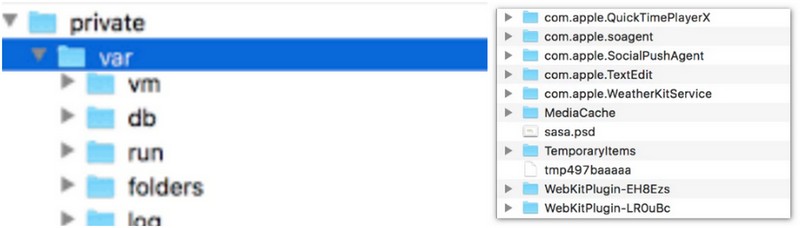
Once you locate a temporary file, try opening it in Photoshop:
If you use Windows and have File History enabled, you can recover your lost Photoshop files from previous versions stored by Windows. File History automatically backs up files that are regularly modified, which can be extremely helpful if your file was overwritten or lost after a system crash or accidental deletion.
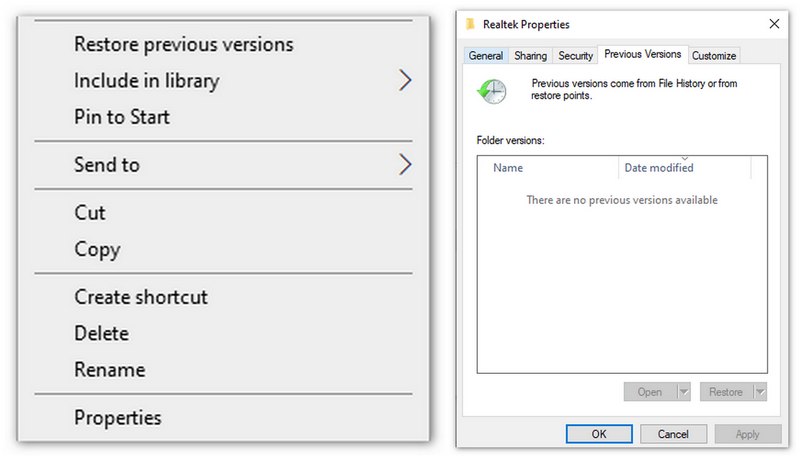
If the file was saved in the "Documents folder or another location that is regularly backed up, this method can help you quickly retrieve it without any additional software.
If you’re a Mac user, Time Machine can be an excellent tool to recover lost Photoshop files, provided you’ve been using it to back up your system. Time Machine automatically creates backups of your entire system, including files, applications, and system settings. If your Photoshop file was lost or deleted, you can use Time Machine to restore it to a previous state.
Once restored, your Photoshop file will return to its original location, allowing you to continue working without losing any progress.
If you’ve accidentally deleted or lost your PSD files, or if Photoshop crashed and Auto Save didn’t recover your work, you can turn to Recuperación de datos de Aiseesoft. This professional data recovery tool is designed to help you recover Photoshop PSD files, as well as other image formats like PSB, JPG, PNG, and more.
Aiseesoft Data Recovery also supports the recovery of documents, emails, audio, video, and other types of data from various storage devices, such as hard drives, flash drives, and memory cards. Additionally, it offers the ability to repair corrupted JPEG files, making it a powerful solution for Photoshop users dealing with file corruption or accidental deletion.
100% Seguro. Sin anuncios.
100% Seguro. Sin anuncios.
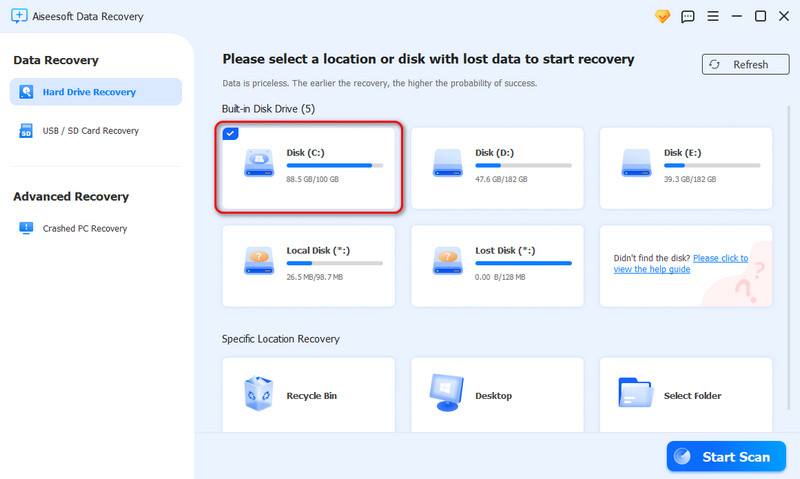
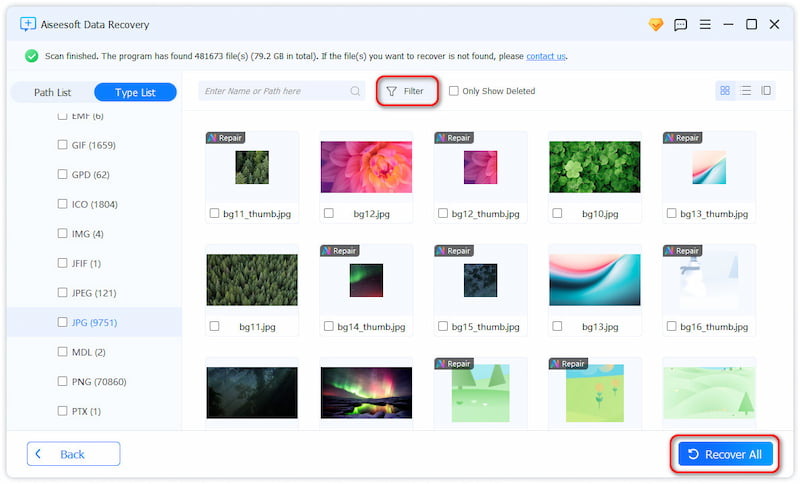
This method is a great solution if other recovery methods, such as Auto Save or Open Recent, haven't worked. Aiseesoft Data Recovery ensures that even permanently deleted files or those lost due to corruption can be restored quickly.
What should I do if I accidentally deleted my Photoshop file?
If you deleted your PSD file by mistake, check your Recycle Bin (Windows) or Trash (Mac) first to see if the file is there. If the file isn’t in the trash, you can use tools like Aiseesoft Data Recovery to scan your computer and recover deleted files. Windows File History and Mac Time Machine can also restore deleted files if you had backups enabled.
How can I repair a corrupted Photoshop file?
You can try Photoshop's own repair feature when opening the file. In the Open dialog box, select the damaged file and click the Repair button. If the file is severely corrupted, you may need to rely on professional file repair tools.
Will the quality of recovered Photoshop files be affected?
In most cases, the quality of recovered files is not affected, especially when using professional recovery software like Aiseesoft Data Recovery. It attempts to preserve the original integrity and quality of the files. Similarly, files recovered through Auto Save or Temporary Files generally retain their original quality. However, if files are partially overwritten or damaged during the recovery process, quality may be affected.
Conclusión
In conclusion, losing your Photoshop files can be a nightmare, but with the right tools and recovery methods, you can minimize the impact. Whether you're relying on Photoshop's built-in Auto Save, Open Recent, or temporary files, or using Windows File History or Mac Time Machine, there are several options to help you recover unsaved or deleted PSD files. For those situations where built-in features fall short, Aiseesoft Data Recovery offers a reliable solution to recover lost or corrupted files. By taking advantage of these recovery methods and ensuring regular backups, you can protect your creative work and recover it with ease, no matter what happens.
 Alternativas de Adobe Flash Player para usuarios de Windows Mac Android iOS
¿Cómo actualizar Adobe Flash Player? ¿Cuáles son los reemplazos de Adobe Flash Player? Aquí puedes encontrar todas las soluciones.
 Cómo utilizar la cámara lenta de Adobe Premiere
¿Quieres usar la cámara lenta de Adobe Premiere? Aprenda a crear cámara lenta en Adobe Premiere en esta publicación.
 Preguntas y respuestas sobre la copia de seguridad automática (Copia de seguridad automática de Samsung incluida)
¿Qué es la copia de seguridad automática de Samsung? ¿Cómo eliminar imágenes de copia de seguridad automática? Este artículo proporciona todas las preguntas y respuestas sobre la copia de seguridad automática.
Recuperar varios datos
1. Software gratuito de recuperación de datos
2. Recuperar archivos borrados en Windows
3. Recuperar archivos borrados de la papelera de reciclaje de Windows
4. Recuperar correos electrónicos eliminados permanentemente
5. Recuperar documento de Word no guardado en Mac

Aiseesoft Data Recovery es el mejor software de recuperación de datos para recuperar fotos, documentos, correos electrónicos, audio, videos, etc. eliminados o perdidos de su PC/Mac.
100% Seguro. Sin anuncios.
100% Seguro. Sin anuncios.

*Campo requerido
*Por favor ingrese un correo electrónico válido