Aiseesoft Screen Recorder
 100% Seguro. Sin anuncios.
100% Seguro. Sin anuncios.
Contenido
¿Alguna vez has cambiado de ventana al grabar o transmitir tu juego y el sonido se corta? Muchos streamers y creadores de contenido se enfrentan a este problema. ¿Cómo? Capturar el audio del juego al presionar Alt+Tab en OBSEsta guía te ayudará a solucionarlo. Primero, te explicaremos por qué OBS pierde el audio del juego. Luego, te mostraremos cuatro métodos sencillos para solucionarlo definitivamente. ¿Listo para capturar el audio del juego, incluso con Alt+Tab? ¡Comencemos!
OBS puede dejar de grabar el audio de tu juego cuando presionas Alt+Tab por las siguientes posibles razones:
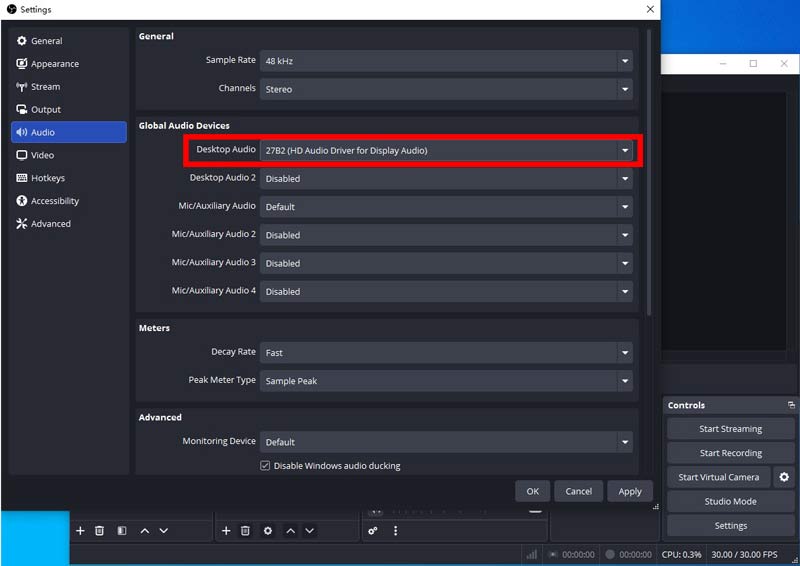
Capturar el audio del escritorio es el método más sencillo y universal. Sin embargo, la captura de audio del escritorio graba todo el audio del ordenador. Mezcla todas las pistas de audio, por lo que también se pueden grabar sonidos innecesarios. Esto lo hace menos flexible y, en ocasiones, incómodo.
Pasos:
1. Abra Configuración.
2. Busque Audio > Dispositivos de audio globales > Audio de escritorio y luego seleccione su dispositivo.
3. Haga clic en "Aplicar" para aplicar la configuración en la parte inferior derecha.
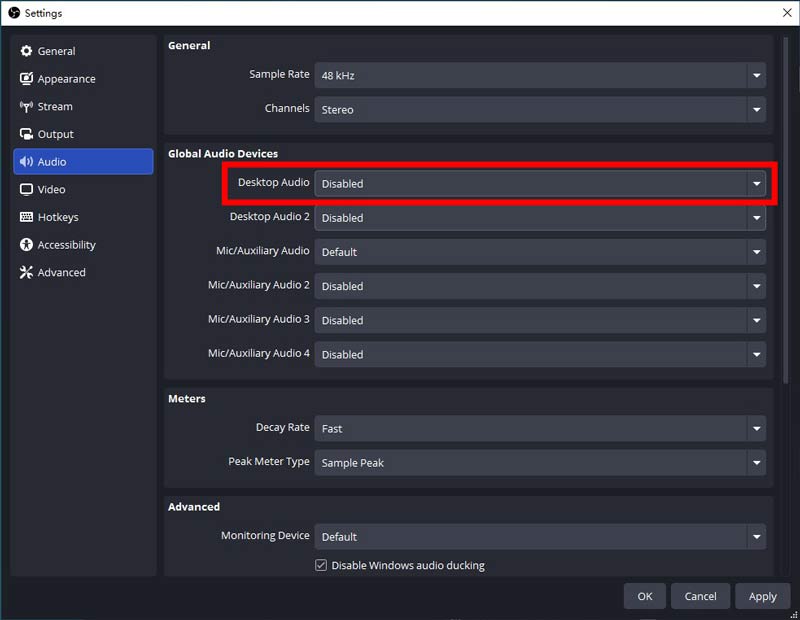
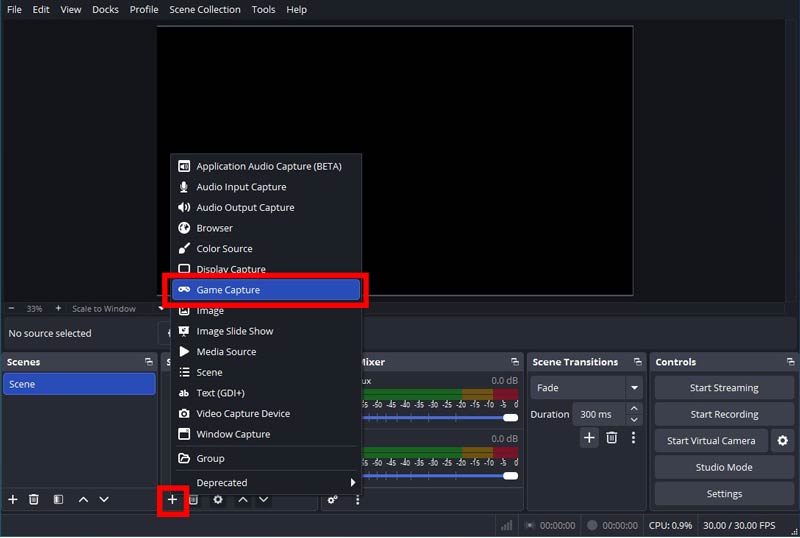
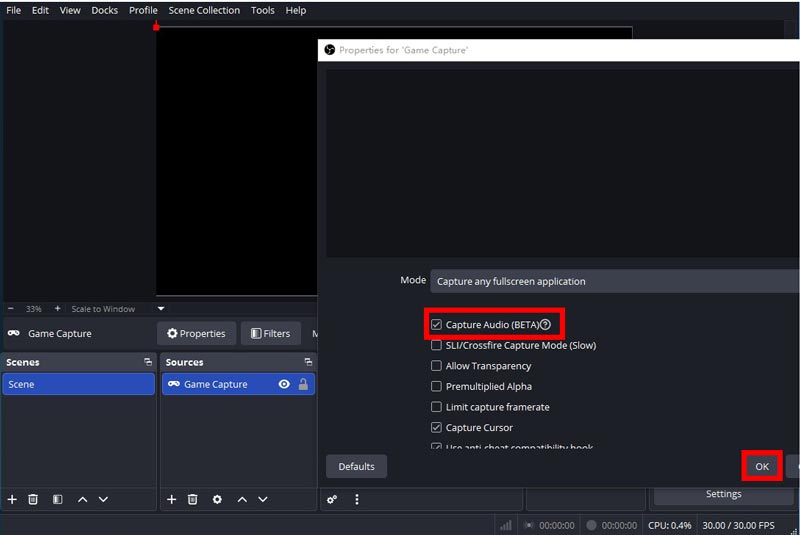
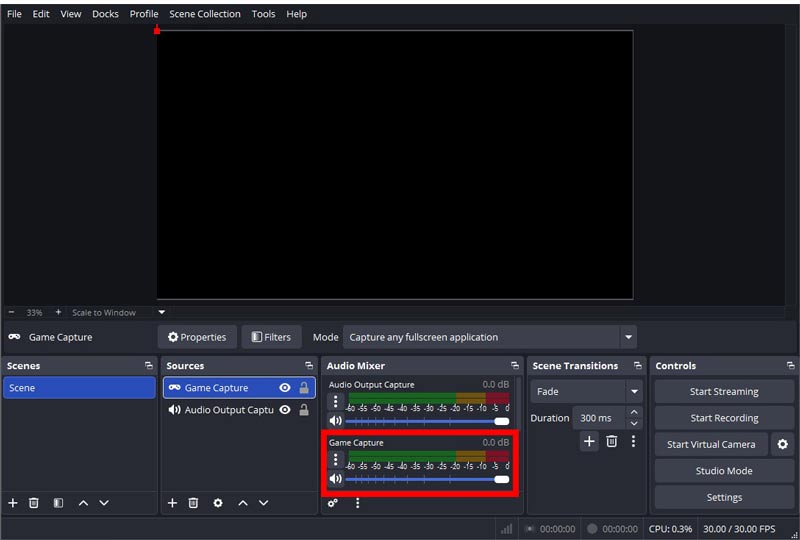
Para streamers cuyo objetivo principal es capturar su juegoPara que el audio se reproduzca con claridad, el método más intuitivo es usar la función Captura de Juego para grabar el audio de un juego específico en OBS. Desactivar el audio del escritorio y capturar solo el audio del juego ayuda a eliminar los sonidos no deseados del sistema. Esto crea una banda sonora limpia y profesional para tu transmisión o grabación.
Sin embargo, Capture Audio aún está en versión BETA. Puede ser inestable o incompatible, e incluso bloquearse, por lo que se recomienda a los usuarios tener cuidado con los posibles riesgos.
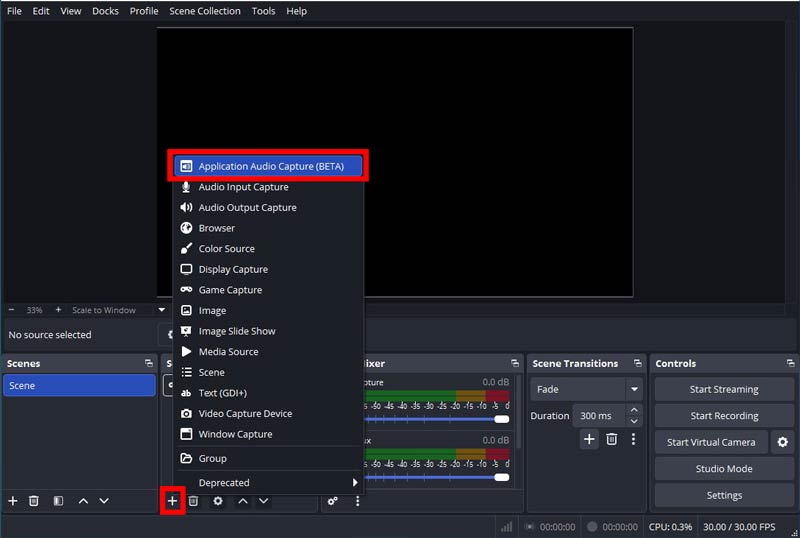
La Captura de Audio de la Aplicación permite que OBS grabe solo el audio del juego. En ocasiones, es posible que necesites grabar el audio de una aplicación sin incluir el vídeo; este método también es eficaz para ese propósito.
La principal ventaja de este método es que permite capturar el audio de una aplicación específica, como tu juego, excluyendo el resto de los sonidos del sistema. Esto proporciona un gran control y una mezcla de audio nítida.
A diferencia de Game Capture, este método solo captura el audio de la aplicación. Si quieres grabar tanto vídeo como audio, necesitarás otras herramientas o funciones. Además, como la función aún está en fase beta, podría ser inestable, incompatible con algunas aplicaciones o provocar fallos.
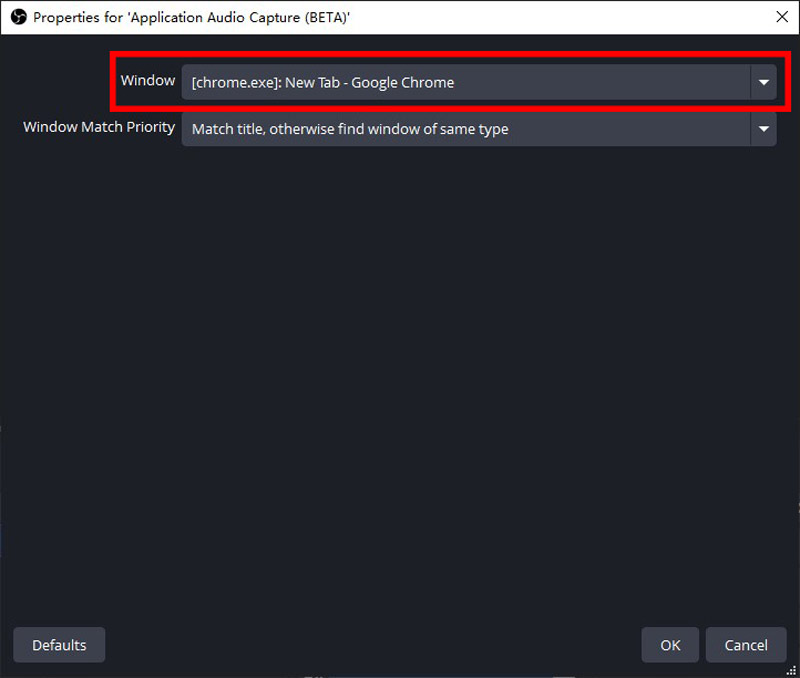
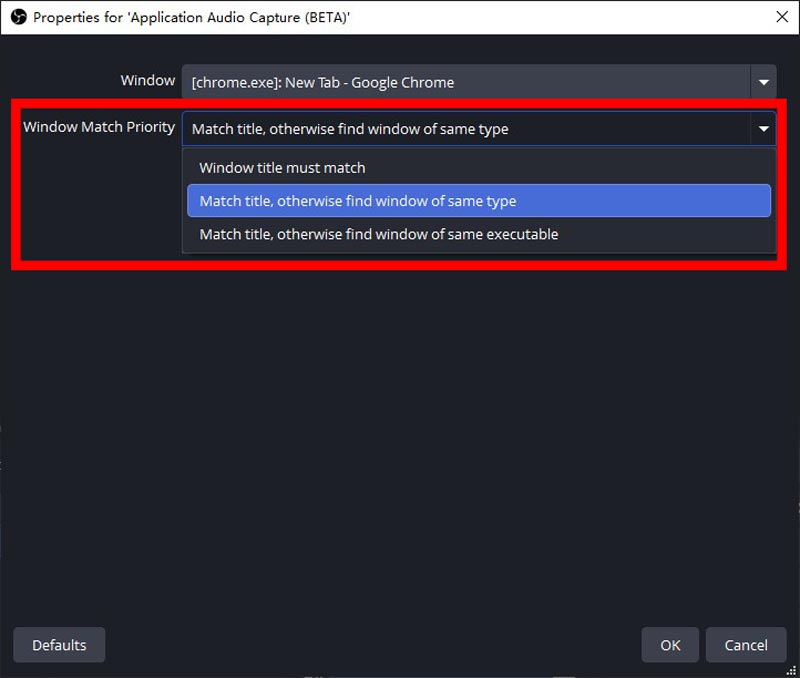
Este método es sencillo y fácil de usar. No necesitas añadir nuevas fuentes ni configurar configuraciones complejas en OBS. Puedes minimizar el juego o cambiar a otra ventana, como un navegador o un chat, sin que se corte el audio del juego.
Sin embargo, la mayor desventaja es que no todos los juegos admiten esta función. Muchos no la ofrecen, lo que hace que el método sea inutilizable.
Si estos métodos no pueden solucionar los problemas de audio de tu juego OBS, puedes recurrir a una alternativa a OBS: Aiseesoft Screen Recorder.
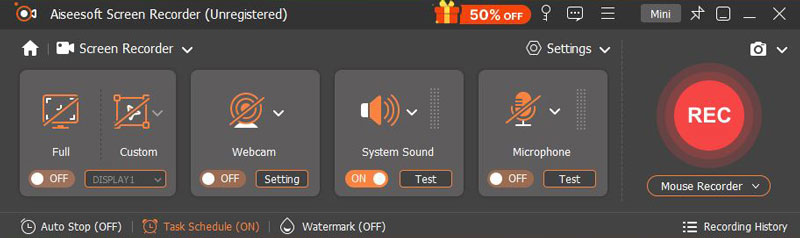
Aiseesoft Screen Recorder te permite grabar toda la pantalla, una ventana seleccionada, el audio de la cámara web, juegos o teléfono, e incluso tomar capturas de pantalla. A diferencia de OBS, consume menos recursos del sistema, por lo que funciona sin problemas en la mayoría de los ordenadores. Además, puedes seguir pasos más sencillos para capturar audio al usar Alt+Tab en Aiseesoft Screen Recorder. Además, su configuración es más sencilla, lo que la convierte en una excelente opción para quienes buscan una experiencia de grabación sencilla.
100% Seguro. Sin anuncios.
100% Seguro. Sin anuncios.
Aiseesoft Screen Recorder ofrece una alternativa más sencilla e intuitiva a OBS para grabar juegos, especialmente al capturar audio mientras se usa Alt+Tab. Gracias a su fácil configuración y al bajo consumo de recursos del sistema, los usuarios pueden empezar a grabar rápidamente. Tanto si eres principiante como si buscas una experiencia de grabación sin complicaciones, ofrece una solución eficiente y fiable para una captura de juegos fluida sin las complejidades de OBS.
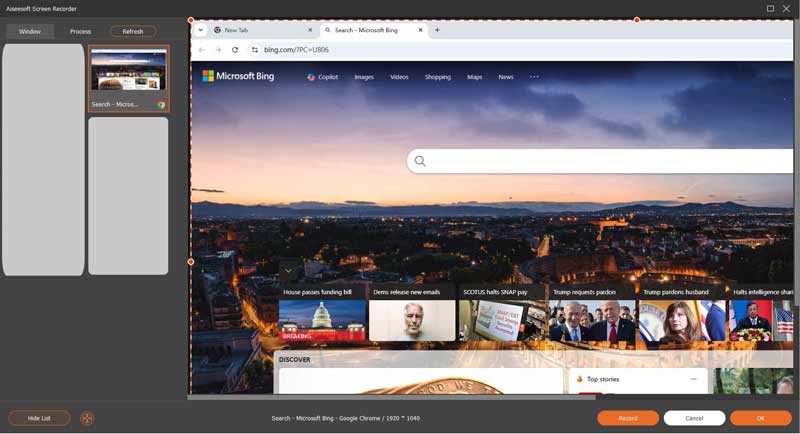
Para capturar el audio del juego al mantener presionada la tecla Alt+Tab, hay dos métodos sencillos en Aiseesoft Screen Recorder:
Para los usuarios que tienen dificultades con el audio de los juegos OBS, la Grabadora de Juegos de Aiseesoft Screen Recorder ofrece una configuración mucho más sencilla e intuitiva. Permite grabar rápidamente con una configuración mínima.
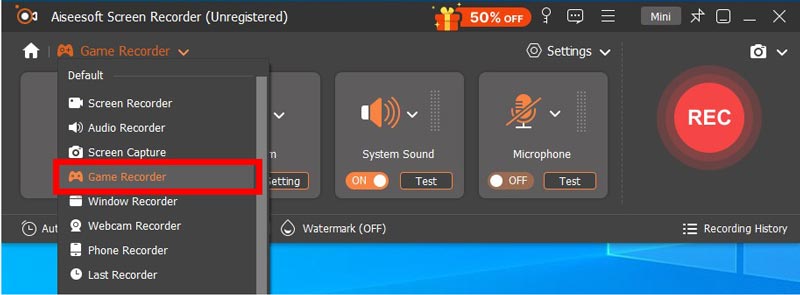
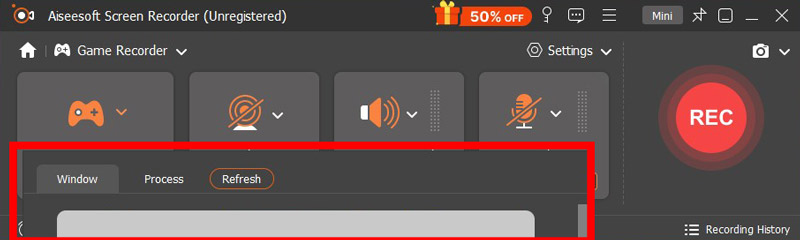
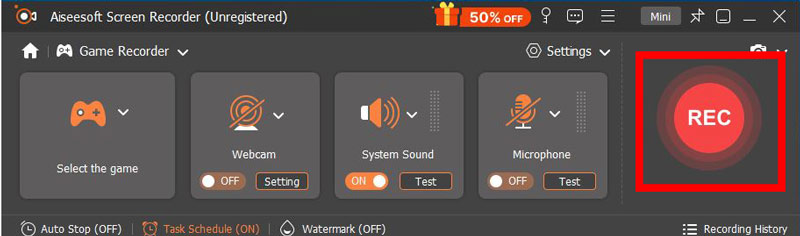
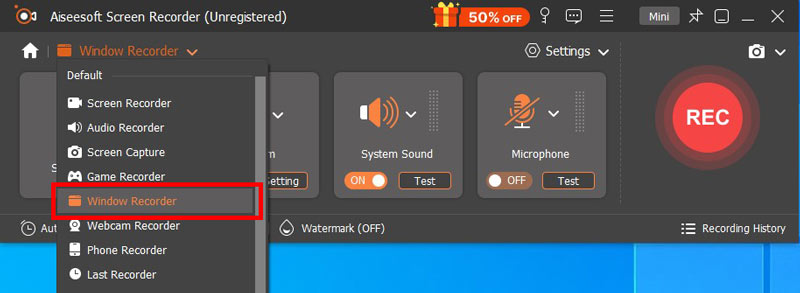
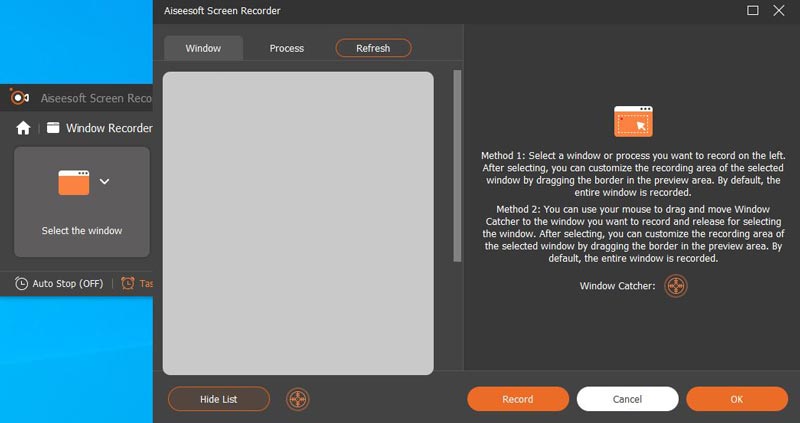
La función Grabadora de Windows puede capturar el video y el audio de la ventana seleccionada, incluyendo tus juegos. Es mucho más fácil de usar que OBS para el público general.
¿Cómo capturar el audio del juego por separado en OBS?
Tanto la Captura de Juego como la Captura de Audio de la Aplicación pueden capturar y restaurar la pista de audio del juego por separado. Los pasos se describieron anteriormente.
¿Game Capture en OBS captura audio?
Sí. Game Capture puede grabar el video y el audio de tu juego simultáneamente. Además, el audio del juego se restaura por separado como una pista, para que puedas editarlo sin cambiar otros ajustes de audio.
¿Puedo usar OBS para grabar sólo audio?
No. OBS no solo graba audio. Como herramienta de grabación de pantalla y transmisión, necesita grabar video junto con audio para capturar la salida de audio.
Conclusión
Capturar el audio del juego mientras se mantiene presionada la tecla Alt+Tab Puede ser un desafío para streamers y creadores de contenido que usan OBS. Sin embargo, con los métodos descritos en esta guía, puedes resolver el problema eficazmente. Si estas soluciones no te funcionan o te resultan demasiado complejas, Aiseesoft Screen Recorder ofrece una alternativa fiable y sencilla a OBS. Te garantiza capturar el audio del juego sin esfuerzo, incluso al usar Alt+Tab.
 Conozca las mejores configuraciones de OBS para grabar y transmitir
¿Cuáles son las mejores configuraciones de grabación de juegos para OBS Studio? ¿Cómo optimizas tu grabación OBS? Conozca las mejores configuraciones de OBS para grabación y transmisión.
 Nueva guía: Cómo solucionar el retraso de registros de OBS con 7 formas rápidas
OBS es útil para transmisión en vivo y grabación de pantalla. Pero el problema del retraso récord aparece a veces. Afortunadamente, este artículo le mostrará soluciones.
 Revisión completa sobre qué es OBS Screen Recorder y las mejores alternativas
Libere todo el potencial de OBS Screen Recorder con nuestra guía de uso y revisión paso a paso. Comience a grabar hoy mismo sin esfuerzo y de manera eficiente para la creación de contenido profesional.
Aiseesoft Screen Recorder es el mejor software de grabación de pantalla para capturar cualquier actividad como videos en línea, llamadas de cámara web, juegos en Windows/Mac.
100% Seguro. Sin anuncios.
100% Seguro. Sin anuncios.

*Campo requerido
*Por favor ingrese un correo electrónico válido