Aiseesoft Anock Desbloqueador de Android
 100% Seguro. Sin anuncios.
100% Seguro. Sin anuncios.
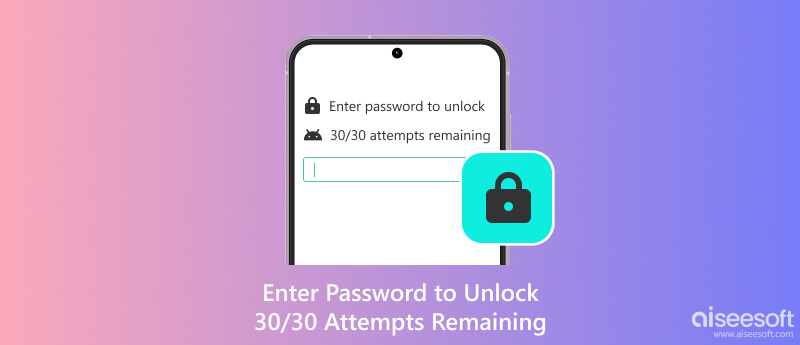
¿Te has encontrado con el mensaje “Ingrese la contraseña para desbloquear 30/30 intentos restantes¿En tu teléfono Android? Quizás activaste accidentalmente el inicio de seguridad o alguien más ingresa repetidamente la contraseña incorrecta. Sea cual sea el motivo, esta advertencia puede ser preocupante y generar ansiedad.
Sin embargo, no se preocupe. Este texto no significa que el teléfono se desinstale pronto, es solo un mecanismo de protección de Android. Tranquilícese primero y siga las soluciones a continuación paso a paso. Ofrecemos 6 soluciones para el problema "Introducir contraseña para desbloquear 30/30 intentos restantes" y consejos para evitarlo.
Nota:
Si su teléfono aparece Ingrese la contraseña para desbloquear 30/30 intentos restantes¡No ingrese datos de manera continua y rápida y no reinicie cuando no haya energía!
Si la información Ingresar contraseña para desbloquear 30/30 intentos restantes aparece en la pantalla de su Android, su teléfono está bloqueado temporalmente. Este mensaje tiene dos significados: debe ingresar la contraseña correcta para desbloquear su teléfono y solo tiene 30 veces para ingresar las contraseñas. Si se te acaban los 30 intentos y aún no desbloqueas tu teléfono Android, se bloqueará permanentemente.
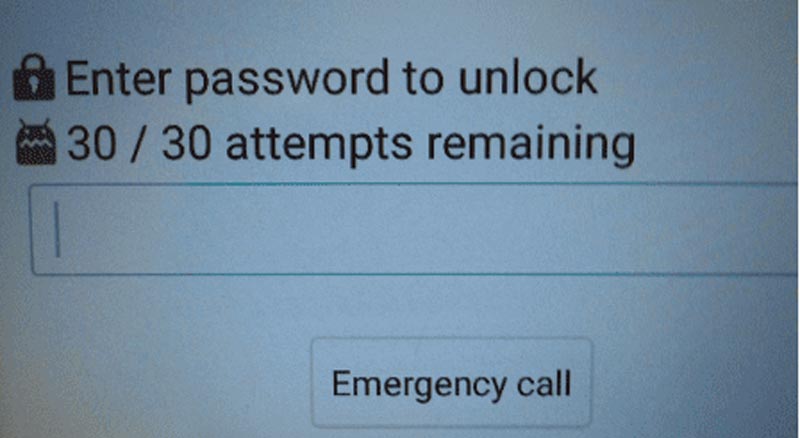
Ingrese la contraseña para desbloquear 30/30 intentos restantes es una característica de seguridad para proteger su teléfono inteligente del acceso no autorizado. Esto sucede principalmente debido a demasiadas entradas fallidas de contraseña. Los usuarios de dispositivos Android antiguos, como los teléfonos inteligentes LG, pueden encontrar errores de Ingresar contraseña para desbloquear y 30/30 intentos restantes. Pero para los teléfonos inteligentes iPhone y Android más recientes, ingresar la contraseña incorrecta 5 veces bloqueará los dispositivos durante 30 segundos. Si sigue sin poder bloquear el dispositivo, el tiempo de bloqueo se prolongará hasta que quede bloqueado permanentemente.
1. Contraseña olvidada
La causa más común es que simplemente olvidaste la contraseña, el PIN o el patrón de tu pantalla de bloqueo.
2. Inicio seguro (cifrado de disco completo)
Si reiniciaste tu teléfono o actualizaste el software recientemente, tu dispositivo Android te solicitará tu PIN o contraseña principal para descifrar tu información antes de iniciarse. Sin embargo, tu huella digital no funcionará en este momento.
3. Entradas múltiples accidentales
Es posible que los niños o personas con acceso a información personal hayan ingresado contraseñas incorrectas en repetidas ocasiones.
4. Protección contra fuerza bruta
Este límite funciona como un firewall de seguridad. Si su dispositivo detecta intentos rápidos e incorrectos de introducir su PIN, se activará.
5. Fallos del sistema o políticas MDM
• Errores del sistema: Una sección de "Almacenamiento de credenciales" defectuosa después de una actualización fallida puede provocar que el teléfono deje de reconocer la contraseña correcta.
• Teléfonos del trabajo: Si está utilizando un dispositivo administrado por la empresa (MDM), es posible que hayan implementado una política que impone un límite de 30 intentos, después del cual el dispositivo se borrará a sí mismo con fines de protección de datos.
No importa cuáles sean los motivos, aquí hay algunas soluciones comunes para el mensaje Ingresar contraseña para desbloquear 30/30 intentos restantes.
Si agota los 30 intentos de contraseña:
Su dispositivo puede quedar bloqueado temporalmente durante 30 segundos o varias horas.
En algunos casos, el dispositivo requerirá la verificación de la cuenta de Google.
Los casos extremos pueden provocar la pérdida de datos si se requiere restablecer la configuración de fábrica.
Importante: Sus datos NO se eliminan inmediatamente: aún tiene opciones de recuperación.
| Situaciones | Soluciones adecuadas | Tasa de éxito | Facilidad de Uso |
| Si recuerdas la contraseña correcta o la anótamos en algún lugar | Espere el tiempo de espera e ingrese la contraseña correcta | Bajo | Fácil |
| Si su dispositivo Android es la versión 9 o anterior y está vinculado a una cuenta de Google | Recuperar contraseña a través de la cuenta de Google | Alto | Fácil |
| Si desea omitir rápidamente el bloqueo de pantalla | Herramienta de terceros | Alto | Fácil (nota: este método borrará todos los datos). |
| Si habilita Buscar mi dispositivo y recuerda la cuenta de Google | Restablecer contraseña a través de Buscar mi dispositivo de Google Restaurar la configuración de fábrica | Alto | Un poco complejo (nota: este método borrará todos los datos). |
| Si puede encontrar la información de compra | Dirígete a la tienda oficial para obtener ayuda | Alto | Fácil |
Sabemos lo frustrante que es no poder desbloquear tu Android tras muchos intentos. Pero la ansiedad y la ira no ayudan, así que mantén la calma y busca una solución para desbloquear tu teléfono. Por cierto, la mayoría de los smartphones Android y iPhone se bloquean temporalmente después de 5 contraseñas incorrectas. El tiempo de bloqueo se alarga si sigues introduciendo la contraseña incorrecta: primero 30 segundos, luego 1 minuto, 5 minutos o incluso más.
Durante el tiempo de bloqueo, le sugerimos que no realice ninguna operación ni toque, ya que podría generar errores adicionales. Una vez transcurrido el tiempo de bloqueo, ingrese la contraseña correcta si la recuerda o búsquela de nuevo.
Algunos tipos anteriores de teléfonos Android: Android 9 o inferior. tienen una opción de, olvidando la contraseña Y restablecerla si no recuerdas la contraseña correcta. Puedes intentar restablecerla antes de agotar todos los intentos. Es posible que se te pida que respondas algunas preguntas de seguridad que hayas configurado previamente o que inicies sesión en tu cuenta de Google.
Nota: No aparecerá dicho mensaje incluso si intenta ingresar el código de acceso incorrecto en dispositivos Android más nuevos.
¿Te han resultado útiles las soluciones anteriores? De no ser así, te recomendamos una herramienta profesional de terceros. Aiseesoft Anock Desbloqueador de AndroidEs una de las mejores maneras de desbloquear el PIN, patrón, contraseña, huella dactilar y reconocimiento facial de tu teléfono Android. Además, es compatible con teléfonos de diferentes marcas, como Samsung, HTC, LG, Huawei y más.
100% Seguro. Sin anuncios.
100% Seguro. Sin anuncios.
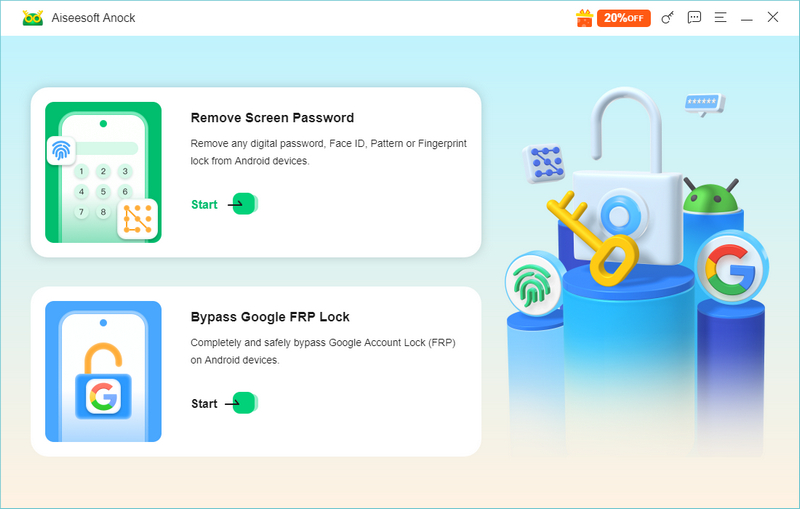
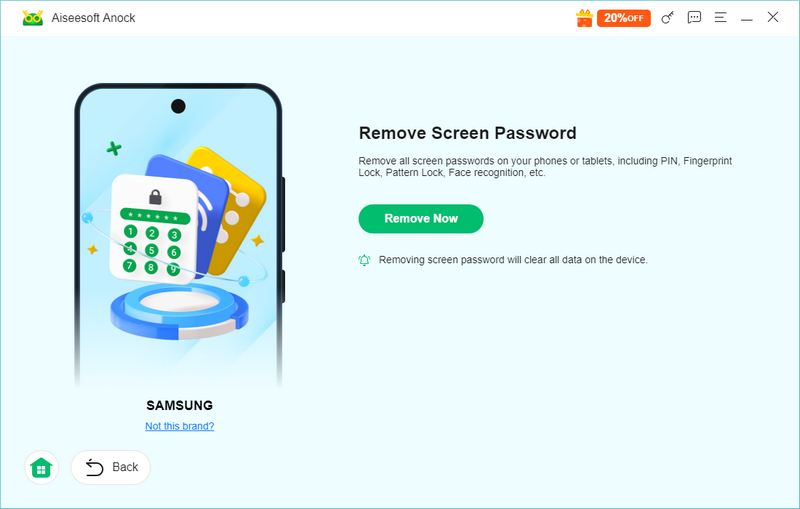
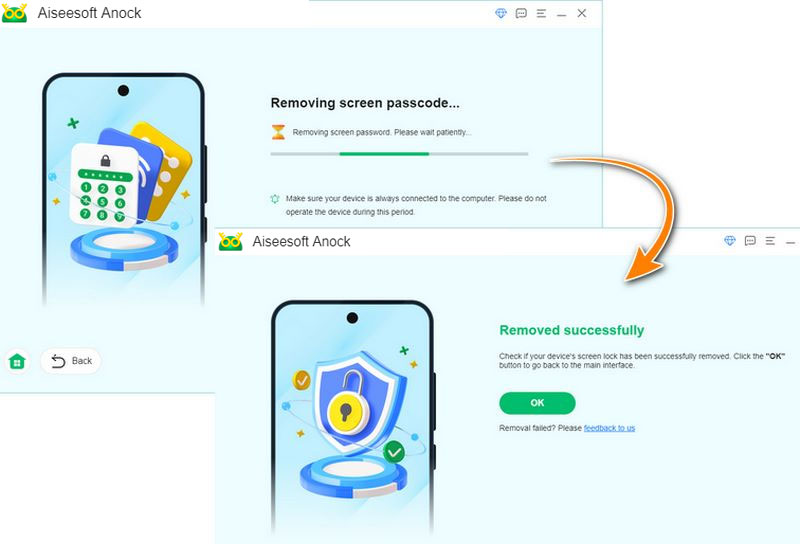
Nota: Esto borrará todos los datos de tu teléfono. Además, si el teléfono tiene una versión superior del parche de seguridad de Android, no existe ningún software disponible que pueda desbloquearlo sin perder datos.
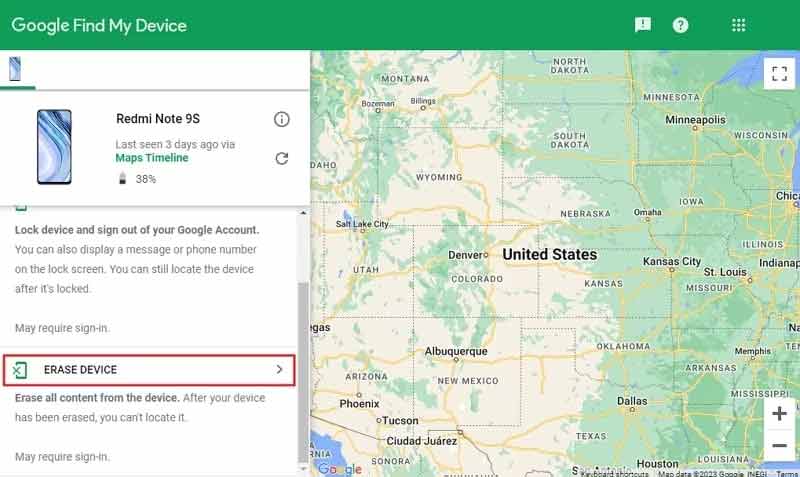
Los usuarios de Android localizan y restablecen sus dispositivos con Google tal como los usuarios de iOS usan iCloud. Si ha vinculado su Android a su cuenta de Google, puede usar Google Finder My Device, el antiguo Administrador de dispositivos Android, para restablecer su contraseña de Android.
Cómo restablecer la contraseña de un dispositivo
Si ninguno de los métodos anteriores le resulta útil, es posible que necesite atención al cliente. La mayoría de los fabricantes de teléfonos establecen distribuidores y ofrecen asesoramiento profesional y atención al cliente. Puede preparar la documentación de compra y acudir a su tienda local para obtener ayuda. Sin embargo, esto puede ser imposible para algunos usuarios que cumplen con la información "Ingrese la contraseña para desbloquear 30/30 intentos restantes" porque su antigua marca de teléfono inteligente podría haber cerrado.
Si ninguno de los métodos anteriores puede ayudar, puede restablecer su dispositivo a los valores de fábrica. Pero esta debería ser su última opción porque no se usa comúnmente para usuarios comunes y todos sus datos se eliminarán por completo después del restablecimiento de fábrica. Aquí hay algunos pasos simples.
La apertura del modo de recuperación varía según la marca y versión de su teléfono. Por lo general, puede simplemente presionar y mantener presionados los botones Bajar volumen y Encendido para ingresar al modo de recuperación.
• Para la mayoría de los teléfonos Android: Encendido + Subir volumen
• Para teléfonos Samsung y LG más antiguos: Encendido + Bajar volumen
En el modo de recuperación, puedes presionar los botones Subir y Bajar volumen para ir a "Borrar datos/Restablecer valores de fábrica" y presionar el botón de Encendido para confirmar. Luego, sigue las instrucciones para hacer clic en "Restablecer valores de fábrica" > "Sí" > "Borrar partición de caché" > "Reiniciar sistema ahora".
Una vez finalizado el restablecimiento de fábrica, deberá verificar su cuenta de Google (si habilita el FRP) o verificar la contraseña (que puede haber olvidado cuando agotó la oportunidad Ingresar contraseña para desbloquear 30/30 intentos restantes).
1. Deshabilitar el inicio seguro
Esta función estará habilitada de forma predeterminada en dispositivos con Android 9 y anteriores. Para deshabilitar el inicio seguro, haga clic en Configuración > General > Pantalla de bloqueo y seguridad > Cifrado y credenciales > Inicio seguro > No en orden.
2. Utilice un administrador de contraseñas
Guarde el PIN de su pantalla de bloqueo o contraseñas complejas en un administrador seguro y profesional.
3. Sincronizar con un servicio en la nube
Asegúrese de que las fotos y los contactos estén respaldados en Google Photos/Drive o en una nube específica de la marca (como Xiaomi Cloud o Huawei Cloud).
¿Cuántas veces puedes intentar desbloquear el patrón en Samsung u otro Android?
1.º a 5.º intento: Se pueden ingresar consecutivamente. Si todos son incorrectos, el teléfono se bloqueará durante 30 segundos.
Intentos 6 al 15: cada intento incorrecto extenderá el tiempo de bloqueo (por ejemplo, 1 minuto, 5 minutos, 30 minutos, etc.).
Después del intento número 15 o 20: el sistema generalmente deshabilitará por completo la entrada gráfica y requerirá verificación mediante un PIN de respaldo, una contraseña numérica o una cuenta de Google/Samsung.
¿Qué sucede si ingresas el PIN incorrecto muchas veces en un teléfono Android?
Si ingresa el PIN incorrecto demasiadas veces, su teléfono Android se bloqueará temporalmente. Algunos teléfonos Android antiguos, como el LG G3, mostrarán el mensaje "Ingrese una contraseña para desbloquear. Quedan 30/30 intentos". Si continúa ingresando contraseñas incorrectas, su teléfono se reiniciará o se bloqueará permanentemente.
¿El uso de software de desbloqueo anulará mi garantía?
Desbloquear la pantalla no suele anular la garantía, pero otras operaciones como rootear o desbloquear el bootloader sí podrían hacerlo. Consulta con el fabricante.
¿Qué pasa si el software no funciona para mi dispositivo?
Empresas de software reconocidas como Aiseesoft ofrecen garantías de devolución de dinero de 30 días. Contacte con su soporte para obtener un reembolso si no está satisfecho con su software.
¿Puedo desbloquear sin una computadora?
La mayoría de las herramientas profesionales requieren una computadora. Para soluciones solo para el teléfono, prueba la app "Encontrar mi dispositivo" de Google en otro dispositivo Android.
Conclusión
Los teléfonos Android tienen funciones de seguridad que se bloquean automáticamente después de demasiados intentos incorrectos de desbloqueo. Esto solo tiene como objetivo proteger su dispositivo y su privacidad. Es posible que vea diferentes formatos de advertencia y Ingrese una contraseña para desbloquear 30/30 intentos restantes is just one kind. To avoid this problem, just try to use a memorable passcode or try to take a note. If this has already happened, you can go to Aiseesoft Anock Android Unlocker for help. With just three simple clicks, it can 100% remove your pattern password, number, fingerprint and face ID.
 Soluciones Android MDM: optimice la administración de dispositivos con más herramientas
La solución Android MDM demuestra que es importante comprender que se necesita nivel de seguridad, administración y creación de un perfil de datos relacionados con el trabajo.
 Conveniencia de desbloqueo: Cómo acceder a Android en la PC [No se requiere enraizamiento]
¿Cómo acceder a Android en PC? Siempre que desee acceder a Android en una PC, puede hacer varias formas de conectarlo. Este artículo completó las formas de hacerlo.
 Los mejores administradores de contraseñas para administrar contraseñas en su Android
¿Android viene con un administrador de contraseñas? ¿Cuál es el mejor administrador de contraseñas para Android? Esta publicación ofrece una revisión completa de los 3 mejores administradores de contraseñas de Android.
Compatible con todas las versiones del sistema operativo Android, este desbloqueador proporciona una manera fácil y segura de eliminar bloqueos de pantalla de cualquier tipo y evitar FRP rápidamente.
100% Seguro. Sin anuncios.
100% Seguro. Sin anuncios.

*Campo requerido
*Por favor ingrese un correo electrónico válido