Video Converter Ultimate
 100% Seguro. Sin anuncios.
100% Seguro. Sin anuncios.
Contenido
CapCut es un potente software de edición de vídeo que cuenta con funciones avanzadas de inteligencia artificial para ayudar a los creadores a alcanzar sus objetivos rápidamente y con poco esfuerzo. Para aquellos que quieran exportar sus vídeos con mejor calidad, CapCut Video Upscaler es quizás la característica de IA más importante. Por eso, hoy le presentaremos las funciones, los pros y los contras, una breve guía sobre cómo obtener videos 4K usando CapCut y un software alternativo a CapCut Video Upscaler. Espero que esto pueda ser útil para ti.
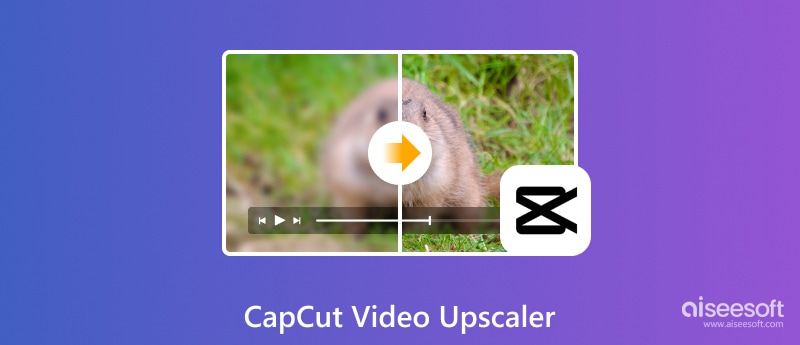
Corte de tapa es un nombre reconocido en el mundo de la edición de audio y video en línea. Ofrece múltiples herramientas útiles para que los creadores realicen diversas ediciones directamente en su navegador. Entre ellas, el escalador de video CapCut es una excelente opción para aumentar la resolución y mejorar la calidad.
Este escalador basado en la web también tiene una versión de escritorio. Por lo tanto, cuando se habla de "CapCut Video Upscaler", puede referirse a dos herramientas diferentes: su herramienta en línea (Escalador de vídeo con IA gratuito) y las funciones de mejora de IA dentro del software de escritorio.
Mejora de vídeo mediante IA.
La característica principal del escalador de vídeo gratuito con IA de CapCut es su avanzada tecnología de aprendizaje profundo que detecta y rellena los píxeles faltantes. CapCut puede escalar vídeos de 720p o 1080p hasta 4K sin perder calidad. Además, la IA mejora la nitidez de los bordes y restaura las texturas perdidas de forma inteligente.
Eliminación de ruido y desenfoque de vídeo.
Además de mejorar el escalado, CapCut analiza tus grabaciones e identifica el ruido digital, como píxeles aleatorios, para luego suavizarlo y lograr una imagen más nítida. Sus algoritmos eliminan el desenfoque y añaden detalles que mejoran la calidad del vídeo. Gracias al escalado, el vídeo se vuelve más claro y se adapta mejor a pantallas de mayor resolución.
Interpolación de fotogramas.
Al exportar el vídeo escalado, CapCut puede crear nuevos fotogramas entre los existentes mediante su función de interpolación. Esto se suele utilizar para lograr una mayor fluidez en el movimiento. Por ejemplo, permite escalar un vídeo de 24 fps a 60 fps o más.
Para aclarar claramente las diferencias entre las dos versiones, aquí hay una comparación directa:
| Característica | Escalador de vídeo con IA gratuito (en línea) | Versión de escritorio de CapCut |
| Resolución máxima de salida | 4K | Exportación en 8K disponible |
| Mejora del núcleo | AI Upscaling | Mejora de imagen mediante IA + Herramientas manuales de color, nitidez y reducción de ruido. |
| Costo | Free | Gratis para usar Las funciones avanzadas de IA pueden requerir Pro |
| Velocidad de procesamiento | Relativamente más lento Dependiente de internet | Más rápido para archivos grandes Utiliza la GPU local para procesar |
| Ideal Para | Pequeñas y rápidas mejoras en clips cortos | Proyectos de edición completos con control de calidad exhaustivo. |
Si bien CapCut es una herramienta potente, sus capacidades de escalado de vídeo, especialmente para el escalador en línea, tienen ciertas limitaciones. No es ideal para la restauración de calidad profesional.
CapCut está diseñado y optimizado principalmente para redes sociales como TikTok. Su escalador de video puede generar texturas demasiado suavizadas. Este puede ser el inconveniente más significativo de CapCut. Cuando lo usa para escalar un video de menor resolución a 2K En resoluciones de 4K, algunos detalles pueden convertirse en una mancha borrosa, como de pintura. En ocasiones, el detalle real no se verá nítido.
Al igual que otras herramientas de escalado de vídeo basadas en IA, sobre todo las online, CapCut puede tener dificultades con imágenes complejas. En algunos casos, añade detalles inapropiados o falsos al vídeo original, lo que resulta en un aspecto poco natural. Además, este escalador de vídeo puede producir resultados inconsistentes. La IA está optimizada para vídeos de calidad similar.
El proceso de mejora de resolución del escalador de vídeo en línea CapCut puede ser bastante lento, especialmente para vídeos grandes de alta definición.
Ventajas
Desventajas
Como ya se mencionó, el escalado de video mediante IA forma parte del proceso de exportación o mejora. Al parecer, CapCut no pretende destacar la diferencia entre ambos.
En CapCut, el escalado no es una función independiente, sino el resultado combinado de las opciones de exportación y la mejora de la calidad. Al usar CapCut para mejorar videos, descubrimos que lo que realmente distingue a CapCut Video Enhancer de otros programas similares en el mercado no es la calidad de la mejora ni la experiencia del usuario, sino las completas y prácticas funciones de edición que le han valido a CapCut su lugar en el campo del software y las aplicaciones de edición de video.
CapCut funciona con un modelo freemium. El editor de vídeo básico y muchas funciones comunes son de uso gratuito. Sin embargo, las herramientas avanzadas de IA, como algunas funciones de mejora, forman parte del modelo freemium. Pro suscripción.
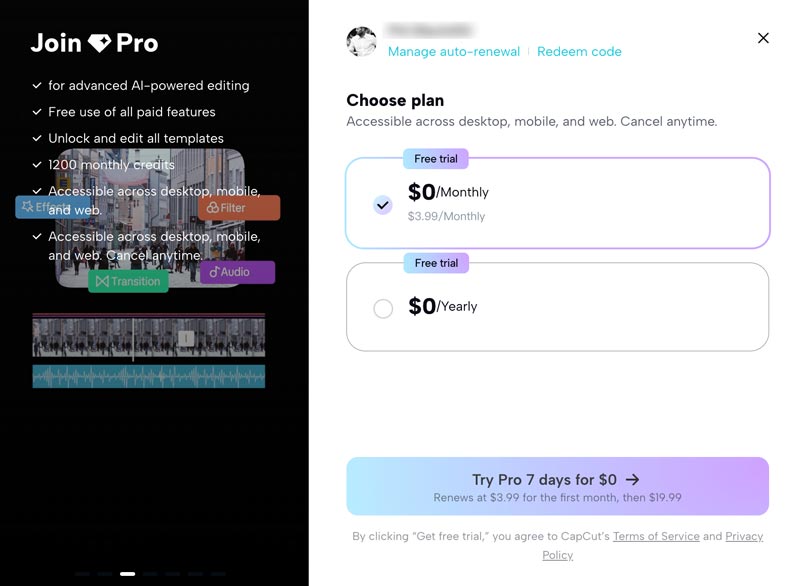
CapCut te permite comenzar una prueba gratuita de la versión Pro durante 7 días. Después de eso, puedes actualizar a través de un precio de introducción ($3.99/mes) y luego un Precio estándar ($ 19.99 / mes).
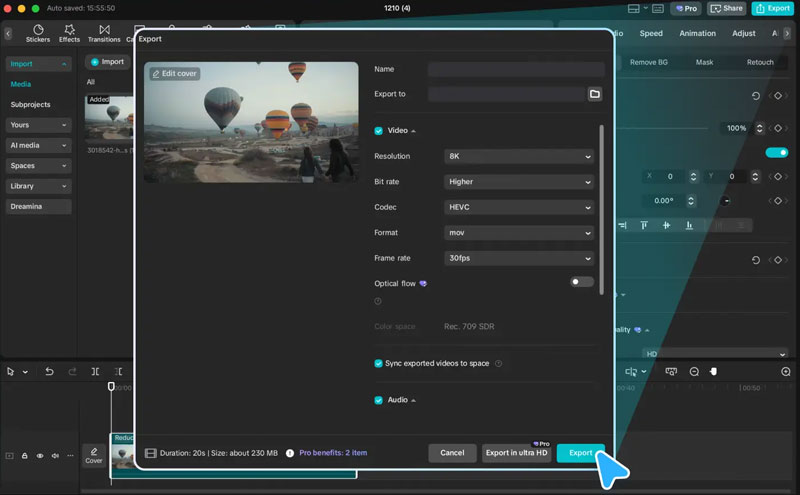
Como se enumeran en las desventajas de la sección anterior, no puedes obtener un video 4K en línea usando CapCut Video Upscaler, pero puedes obtener un video con calidad 4K en CapCut, la versión de escritorio. Entonces, para aprovechar al máximo esta guía, primero debe descargar e instalar CapCut en su computadora.
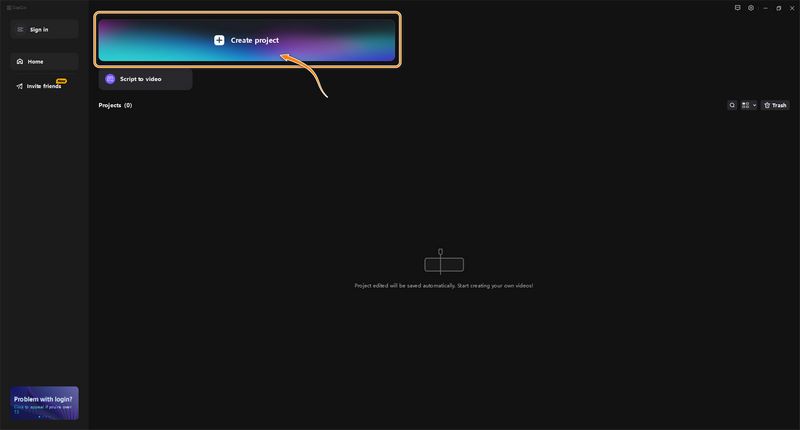
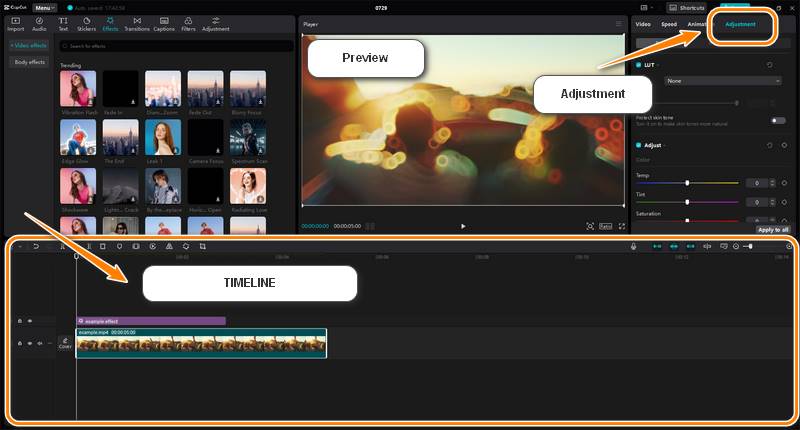
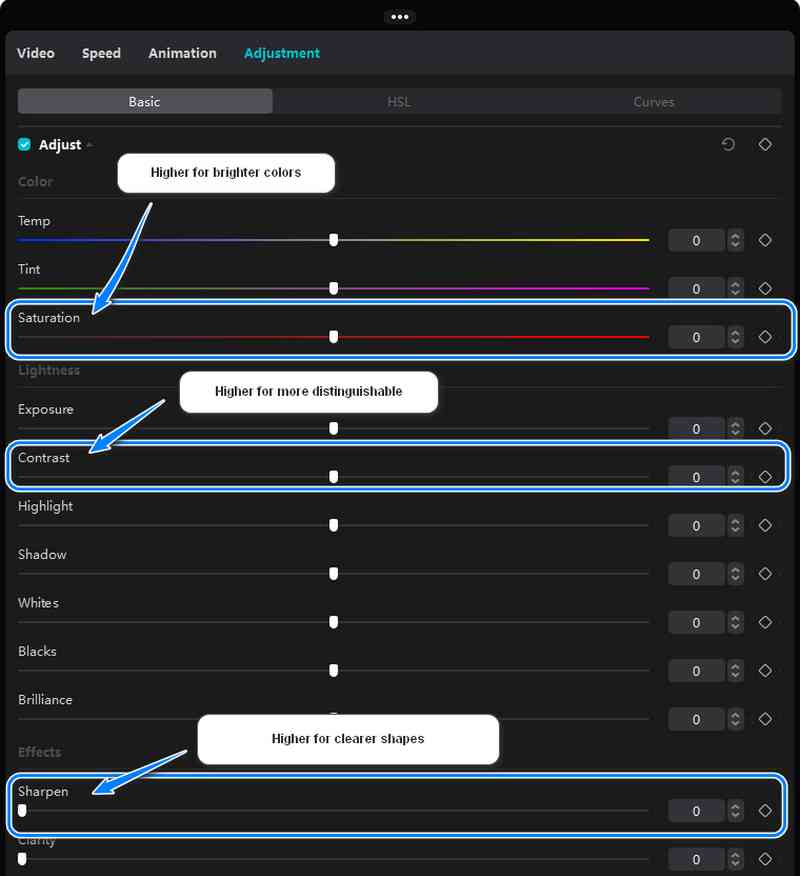
Otra opción es probar la función de mejora de imagen, que puedes encontrar en Conceptos básicos después de seleccionar un vídeo. Pero esta opción solo existe en la versión Pro, y exportar el video procesado por IA tendrá un costo.
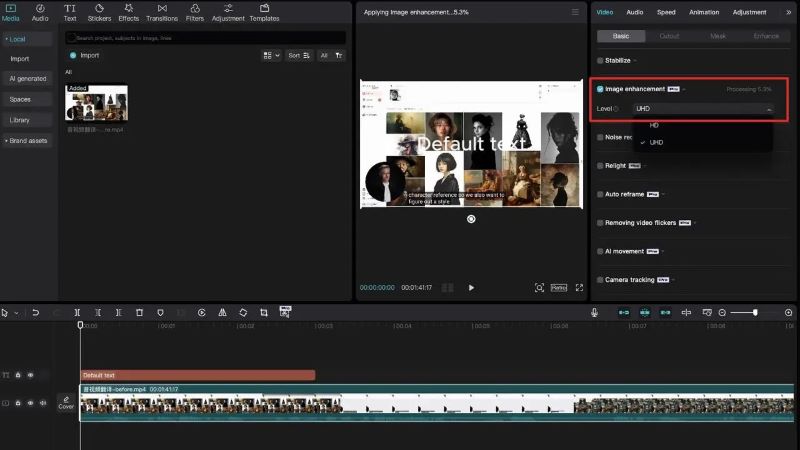
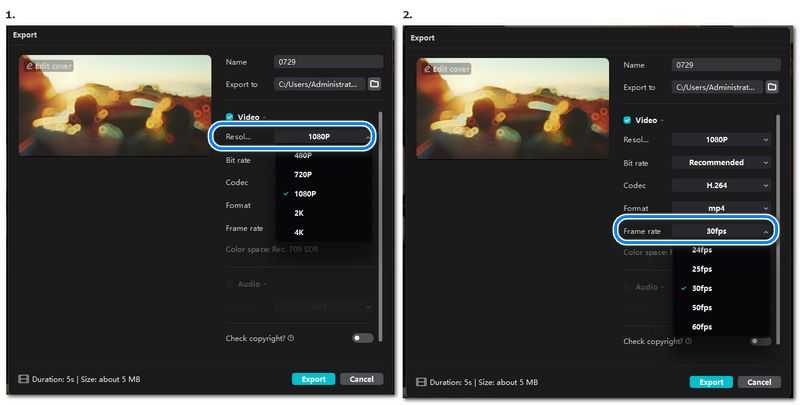
CapCut ofrece muchas funciones de uso común para editar y mejorar vídeos. Sin embargo, aunque es excelente para la edición, algunos usuarios consideran que los resultados de la mejora de escalado son deficientes.
Un problema o queja común es que CapCut a veces deja una sensación de "borrón". Los detalles finos originales, como la textura de la piel o los patrones complejos, se difuminan. Como ya se mencionó, esto suele dar como resultado una apariencia poco natural y excesivamente procesada.
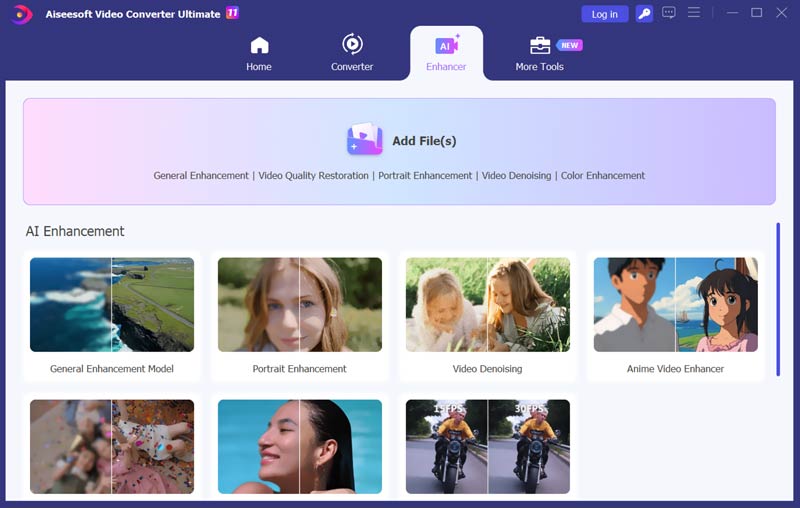
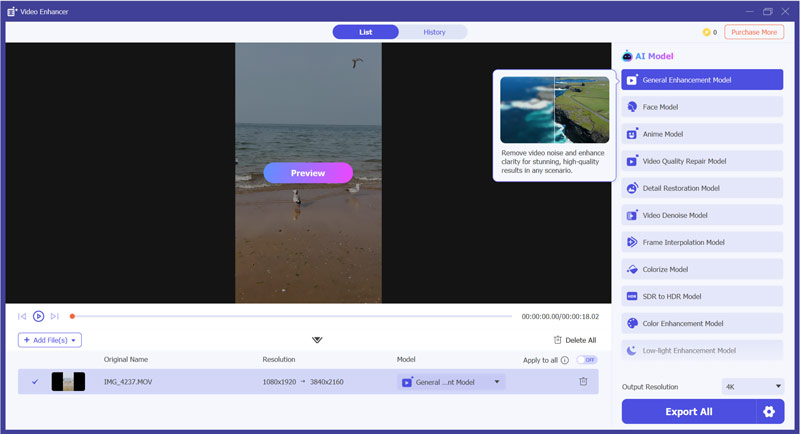
Si el vídeo exportado desde CapCut no se ajusta a sus necesidades y prefiere una alternativa para obtener resultados de calidad profesional, recurra a la confiable Aiseesoft Video Converter UltimateEsta alternativa a CapCut utiliza un modelo de IA más profundo y sofisticado para la mejora de imágenes. En comparación con CapCut, suele producir mejoras de imagen más limpias y de aspecto más natural.
100% Seguro. Sin anuncios.
100% Seguro. Sin anuncios.
¿Está roto el escalador de videos en línea de CapCut?
Si descubre que el escalador de video en línea de CapCut no genera la versión mejorada de su video, puede cambiar para intentar ajustarlo y exportarlo en la versión de escritorio de CapCut. O simplemente utilice Aiseesoft Filmai para disfrutar de una experiencia exitosa garantizada.
¿CapCut admite vídeos 4K?
Sí, CapCut admite la exportación de vídeos 4K, pero sólo para la versión de escritorio. El potenciador de video en línea CapCut solo tiene una opción de mejora de 2K.
¿Cómo exporto desde CapCut para obtener la mejor calidad?
Para la aplicación, al exportar su video, elija 1080p, 60 fps y la tasa de bits recomendada. Para la versión de escritorio, elija una tasa de bits más alta y utilice códecs que tengan menos pérdida de compresión de calidad, como H.264 o H.265.
¿Por qué el vídeo 4K que exporté con CapCut sigue borroso?
Puede haber diferentes razones por las que tu vídeo exportado desde CapCut se vea borroso. Generalmente, el problema se debe al archivo de origen. Si el vídeo tiene muy baja calidad o está muy comprimido, el vídeo final escalado seguirá borroso, incluso si se escala a una resolución 4K. El escalado básico de CapCut puede tener dificultades para crear nuevos detalles finos. Puedes probar a usar un escalador de IA más avanzado como Aiseesoft Video Converter Ultimate para una mejora real de los detalles.
¿La función de mejora de la calidad de imagen CapCut es gratuita?
Las funciones básicas de ajuste de color y nitidez en CapCut son gratuitas. Las herramientas básicas de ajuste de color y nitidez en la versión de escritorio también son gratuitas. Sin embargo, las funciones avanzadas de mejora mediante IA requieren la suscripción Pro.
Conclusión
La mejora de video era inimaginable hace diez años, pero con el avance de la informática y la IA, ahora es un servicio del que todos pueden beneficiarse. CapCut, una empresa joven y ambiciosa de software de edición de video, tiene la capacidad de llevarse una porción del pastel, pero para los clientes, lo importante es la experiencia del usuario y el efecto de mejora. En el artículo de hoy, analizamos CapCut Video Upscaler y presentamos los pasos para obtener videos 4K desde la versión de escritorio de CapCut. Finalmente, presentamos una alternativa a CapCut para una experiencia de mejora de video más especializada: VidHex. Esperamos que este artículo les sea útil.
 Cómo cambiar la relación de aspecto y recortar vídeo en CapCut
¿Cómo se cambia la relación de aspecto en CapCut PC? ¿Puedo recortar un video en CapCut en mi teléfono Android? Aprenda a recortar videos y cambiar la relación de aspecto usando CapCut.
 Los 5 mejores escaladores de vídeo 4K con IA: características, ventajas, desventajas y más
Hay 5 escaladores de vídeo 4K AI más utilizados. ¿Se adapta a todos? Tenemos todo lo que quieres saber al respecto. ¡Vamos a ver!
 Cómo mejorar la calidad del vídeo con 4 soluciones diferentes
¿Cómo mejora Nvidia Video Super Resolution la transmisión de vídeos? ¿Cómo puedo mejorar la calidad del video usando IA? Lea la guía completa para mejorar la calidad del video.
Video Converter Ultimate es un excelente conversor, editor y potenciador de video para convertir, mejorar y editar videos y música en 1000 formatos y más.
100% Seguro. Sin anuncios.
100% Seguro. Sin anuncios.

*Campo requerido
*Por favor ingrese un correo electrónico válido