Aiseesoft Screen Recorder
 100% Seguro. Sin anuncios.
100% Seguro. Sin anuncios.
Contenido
Audacity afirma ser la aplicación de grabación y edición de audio más popular del mundo. Si buscas una grabadora de voz o audio, especialmente una gratuita, para capturar el sonido de tu ordenador, puedes recurrir fácilmente a la recomendación de Audacity.
Grabadora de voz Audacity Ofrece una forma práctica de capturar y editar audio en los principales sistemas operativos. Si desea obtener más información sobre la descarga del software, sus funciones, la configuración, cómo usar Audacity para grabar audio de computadora o cómo solucionar problemas, consulte la reseña a continuación.
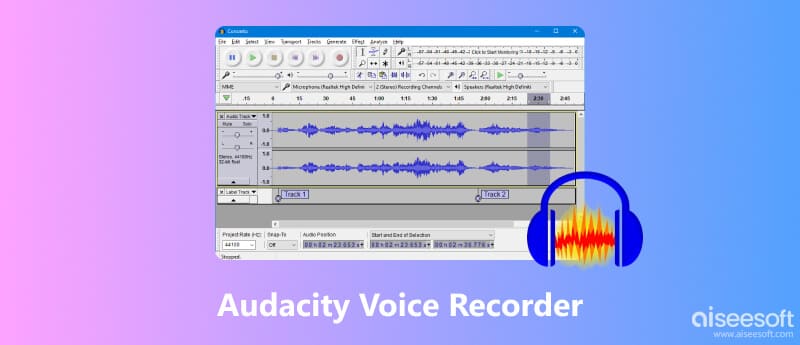
Audacity Es una herramienta de confianza, utilizada principalmente para grabar y editar audio digital. Al ser un grabador de audio de código abierto y multiplataforma, es ampliamente utilizado por quienes desean ser creativos con el sonido, incluyendo podcasters, músicos, ingenieros de audio y usuarios ocasionales.
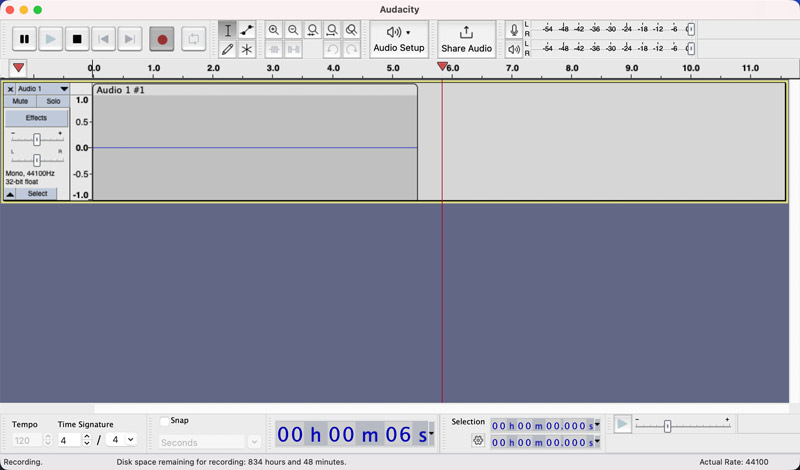
• Audacity se utiliza principalmente para capturar audio de computadoraPuede grabar sonido de un micrófono y de la reproducción de la computadora. Permite capturar fácilmente voces, voces en off y audio del sistema, como reuniones en línea, música en streaming y más. Una gran ventaja de Audacity es que permite grabar múltiples fuentes de entrada simultáneamente.
• Otra fortaleza fundamental de Audacity es su edición y manipulación de audio Funciones. Cuenta con todas las funciones necesarias para cortar, copiar, fusionar y eliminar secciones de audio. Además, Audacity incluye reducción de ruido, fundido de entrada y salida, cambio de velocidad y otras opciones.
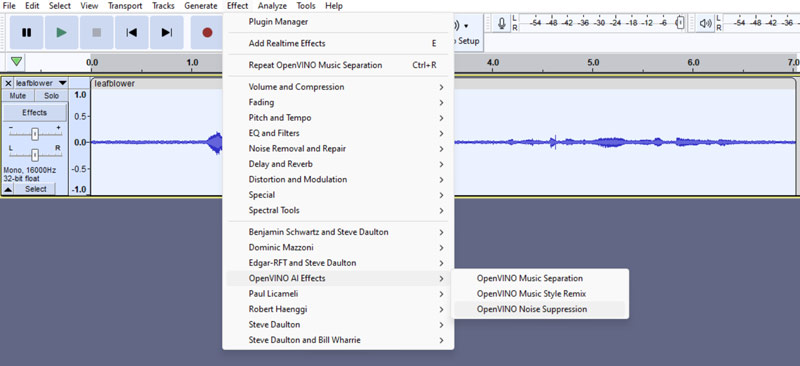
• Audacity también se utiliza para Mezcla de pistas de audio y podcastingOfrece diversas herramientas de IA para podcasts y música. Los efectos de OpenVINO incluyen supresión de ruido, generación musical, remezcla de estilos musicales y otros. Músicos e ingenieros de audio pueden usar el software para grabar demos, aplicar efectos de sonido, ajustar la ecualización, mezclar varias pistas y realizar otras tareas.
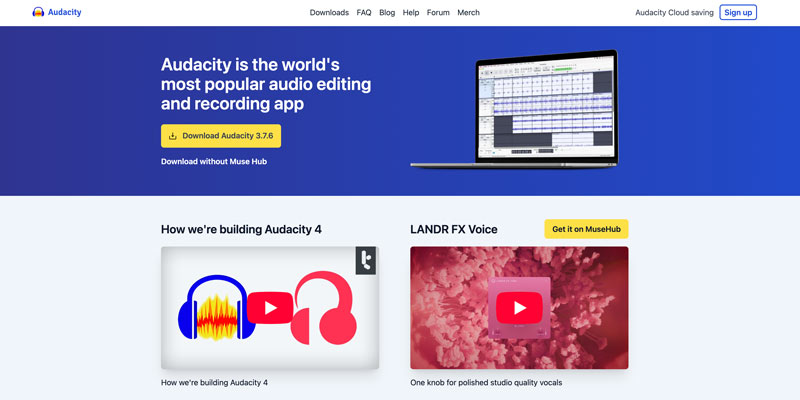
Para capturar el audio de tu ordenador, debes descargar la versión correcta de Audacity según tu sistema. Como ya se mencionó, el software está disponible para Windows, macOS y Linux. Cuando estés en el sitio web oficial de Audacity, se te solicitará la versión más reciente para tu dispositivo. Simplemente haz clic en el icono. Descargar Audacity .
¿Por qué Audacity no me deja grabar?
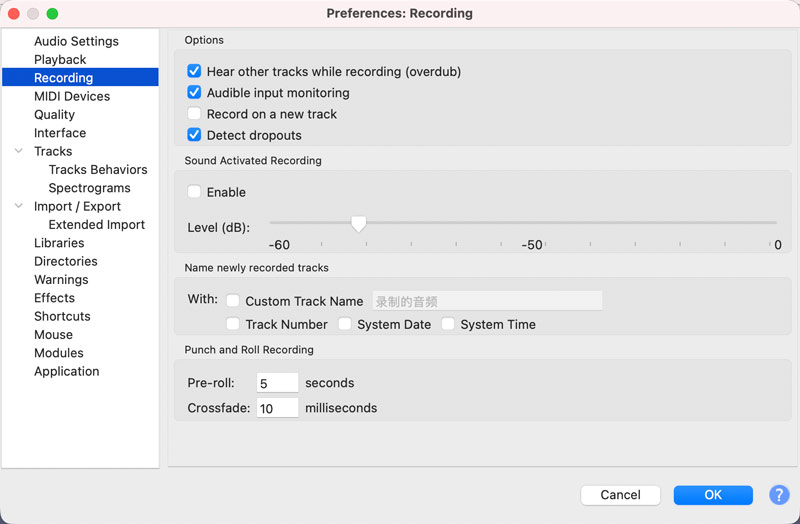
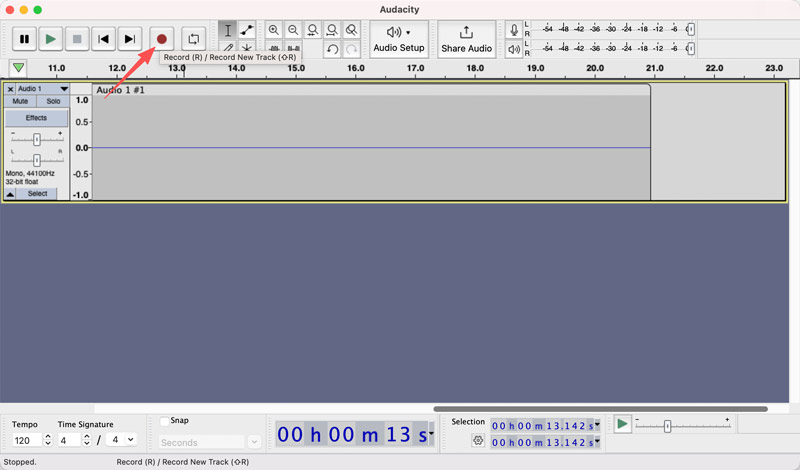
Es muy común que Audacity no grabe tu voz ni el audio de tu computadora. Después de presionar el botón de grabación y hablar por el micrófono, no se ve la forma de onda verde ni el movimiento de nivel en Audacity. Esta sección te guiará para solucionarlo.
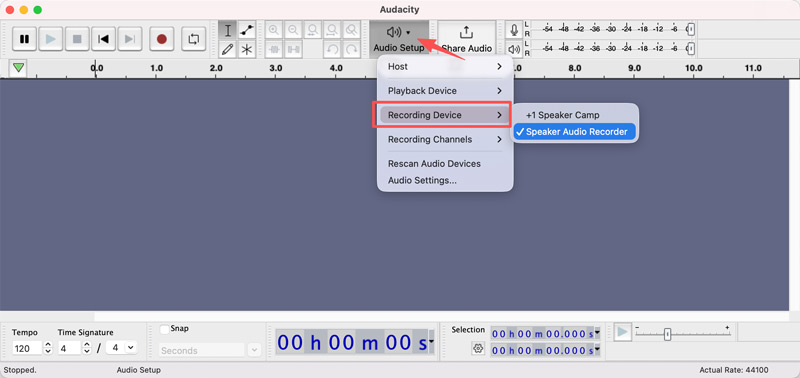
El problema de que Audacity no graba audio suele deberse a una simple discrepancia en la configuración. Debe comprobar que su micrófono esté conectado correctamente y sin silenciar. Además, asegúrese de que el dispositivo de grabación esté seleccionado en Audacity.
Si la grabadora de audio sigue sin funcionar correctamente, compruebe si el micrófono está bloqueado por la configuración de privacidad de su ordenador. Vaya a Preferencias del sistema (Configuración), seleccione Seguridad y Privacidad, y luego selecciona el Micrófono opción. Encontrar Audacity en la lista y asegúrese de que esté habilitado. Después, reinicie el software para guardar los cambios.
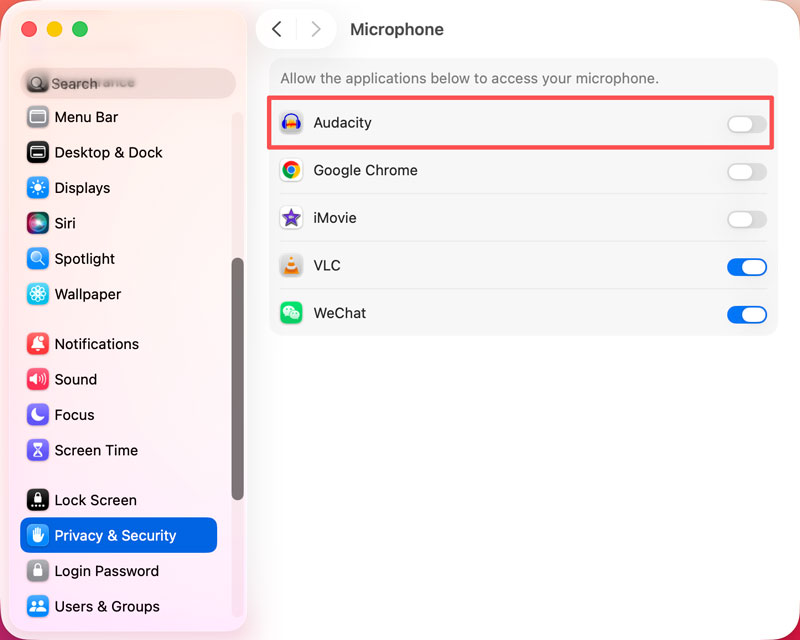
Debes saber que Audacity solo funciona con el micrófono que reconoce tu computadora. Haz clic derecho en el altavoz icono en la barra de tareas (Windows) o vaya a Configuración > Sonido > Entrada (macOS) para comprobar y ajustar el volumen de entrada si es necesario.
En algunos casos, el problema de que Audacity no grabe audio se debe a problemas de hardware y conflictos de software. Puedes usar un puerto USB o dispositivo de grabación diferente para solucionar el problema. También puedes restablecer las preferencias del software o reinstalar Audacity para solucionarlo.
Dado que Audacity es gratuito y de código abierto, puedes instalar la última versión en tu ordenador y probar sus funciones de grabación y edición de audio sin coste alguno. Además, requiere una curva de aprendizaje rápida para las tareas básicas de grabación.
Generalmente, se recomienda probar Audacity y luego decidir si es el grabador ideal para sus necesidades. Elíjalo si solo desea capturar audio y suele necesitar grabar pistas separadas para voz y música.
Sin embargo, si también tienes grabación de pantalla y otras necesidades avanzadas como grabación programadaAudacity podría no ser una buena opción. Descarga el software, sigue el tutorial anterior para configurar el micrófono y haz una grabación de prueba.
Aiseesoft Screen Recorder Es una herramienta confiable y todo en uno para capturar audio, pantalla y cámara web. Comparada con Audacity, ofrece funciones de edición más avanzadas. Permite capturar la voz desde un micrófono, el audio del sistema, las actividades en la pantalla del ordenador y el audio de la cámara web sin problemas. Como alternativa a Audacity, ofrece una solución de grabación más sencilla.
100% Seguro. Sin anuncios.
100% Seguro. Sin anuncios.
Aiseesoft Screen Recorder está diseñado para un uso rápido. Puede seleccionar la grabadora que desee, personalizar la configuración de grabación de audio y video, y luego iniciar la grabación fácilmente.
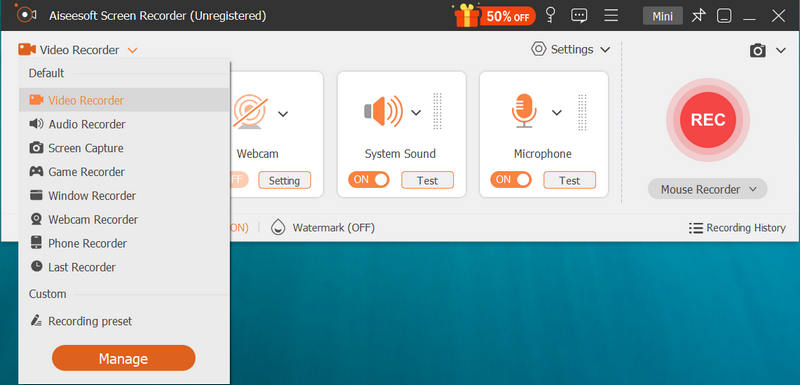
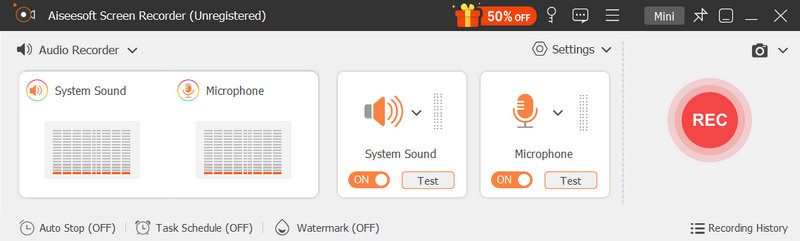
Si prefiere utilizar el software como una grabadora de voz dedicada, seleccione su Grabadora de audio herramienta. Se le permite capturar sonido de Sonido del sistema, micrófono, o ambos según tus necesidades. Tiene un Prueba Botón para que pueda comprobar la calidad de la captura y realizar cambios relacionados rápidamente.
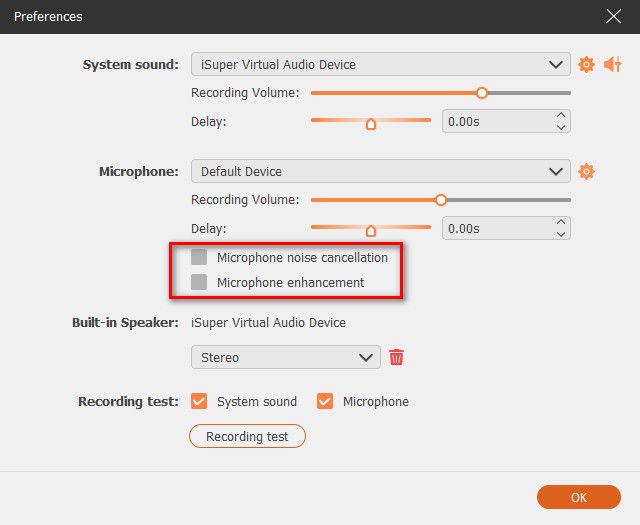
Mejor que la grabadora de voz Audacity, esta alternativa ofrece opciones de personalización más avanzadas para una mejor grabación. Por ejemplo, puedes ajustar el volumen de la grabación, activar la mejora del micrófono y la cancelación de ruido, y configurar un retardo. Además, te permite exportar el audio o vídeo grabado al formato que prefieras.
Pregunta 1. ¿Audacity ya no es gratuito?
Audacity es un software gratuito y de código abierto para grabar y editar audio. Puedes descargar la última versión de Audacity desde su sitio web oficial y usarla gratis. No hay suscripción ni cargos ocultos. Audacity afirma ser siempre gratuito para todos.
Pregunta 2. ¿Cuánto tiempo puede grabar Audacity?
Audacity ofrece una experiencia de grabación de audio estable. En teoría, puede grabar durante horas, días e incluso semanas, siempre que tenga suficiente espacio de almacenamiento. El tiempo final de grabación también puede depender de la potencia de su ordenador, la configuración relacionada, las limitaciones del sistema de archivos y otros factores.
Pregunta 3. ¿Por qué no puedo escuchar lo que grabé en Audacity?
Si pulsas reproducir para escuchar el audio grabado, pero solo escuchas silencio, revisa la conexión del micrófono. Asegúrate de que tus altavoces, auriculares u otros dispositivos de grabación estén conectados y activados. También revisa el volumen de tu computadora. Sigue los consejos de la Parte 3 para solucionar el problema.
Conclusión
Como principiante, quizás te preguntes si Audacity es la grabadora de voz ideal para tus necesidades específicas de grabación. Después de leer esto... Análisis de la grabadora de voz AudacityQuizás ya tengas la respuesta y puedas tomar una decisión. Si necesitas funciones de captura de pantalla o cámara web, o prefieres una mejor experiencia de grabación, prueba la alternativa a Audacity.
 Cómo comprimir un archivo de audio en Audacity en tamaño y calidad ideales
¿Quieres saber cómo comprimir un archivo de audio en Audacity sin perder la calidad? Lea esto atentamente para saber más al respecto.
 5 consejos para corregir el error al abrir el dispositivo de sonido en Audacity
¿Por qué Audacity no reconoce el micrófono? ¿Cómo se abre un dispositivo de sonido en Audacity? Descubra los motivos y las soluciones para el error de Audacity al abrir el dispositivo de sonido.
 Cómo eliminar el ruido de fondo con Audacity
Si necesitas eliminar el ruido de fondo de tu audio y no sabes qué hacer, puedes consultar Audacity para solucionar tus problemas, que satisfará tus necesidades.
Aiseesoft Screen Recorder es el mejor software de grabación de pantalla para capturar cualquier actividad como videos en línea, llamadas de cámara web, juegos en Windows/Mac.
100% Seguro. Sin anuncios.
100% Seguro. Sin anuncios.

*Campo requerido
*Por favor ingrese un correo electrónico válido